Welcome to Your Supplier Integration Journey
This interactive guide walks you through every step of integrating with the SAP Business Network using cXML. Whether you're a new or existing trading partner, we'll help you connect, transact, and collaborate efficiently.
Supplier Integration is connecting your ERP/Middleware system to the SAP Business Network by an electronic method via a touchless process.
While all transactions are submitted to the SAP Business Network using the native language cXML, you may choose to transact via various EDI languages, CSV upload, or the SAP Business Network Portal (also known as POFlip).
System-to-system transfer provides significant advantages:
- Faster and more accurate (45-60%)
- More repeatable and less expensive (60-75%)
- Improved satisfaction for both you and your buyer
It is advised to look at potential integration methods when your annual transactions are estimated to be 250-500+.
Otherwise, Whenever you want!
| Model | Methodology | Implementation Effort | Volume | Key Characteristics |
|---|---|---|---|---|
| Standard Portal | Manual "PO Flip" via Browser | Zero Effort | < 100 Docs/Year | Immediate setup; no technical expertise required; manual data entry. |
| CSV Upload | Spreadsheet-based file upload | Low / Medium | 100 - 500 Docs/Year | Simple mapping; semi-automated; good for high-line count documents. |
| cXML | Direct HTTP/S Real-time XML | High (Technical) | > 500 Docs/Year | Real-time; SAP's native language; highly scalable; full touchless process. |
| EDI (X12/EDIFACT) | VAN or AS2 Batch exchange | High (Strategic) | > 500 Docs/Year | Industry standard; leverages existing EDI middleware; batch processing. |
Note on Connectivity: For cXML and EDI, SAP utilizes the SAP Integration Suite, Managed Gateway for Spend Management and SAP Business Network (formerly CIG) to harmonize communication and mapping between your ERP and the network.
Phase 1: Registration & Account Setup
1 WeekCreate your account, accept trading requests, and assign user roles.
- Register/Login to SAP Business Network
- Provide DUNS, Tax IDs, and complete your company profile
- Create and assign Users/Roles for Integration Management
- Accept the buyer's Trading Relationship Request (TRR)
- Ensure that you have created your TEST account (-T)
Phase 2: Discovery & Functional Scoping
1–2 WeeksAlign with the buying organization, understand requirements, and assess your technical landscape.
- Align with the buying organization on document types in scope
- Obtain the technical integration specification (DTD/Schema)
- Assess ERP capability for cXML document exchange
- Designate a technical lead for mapping and middleware
- Determine transaction volumes and data retention policies
- Establish target timeline for certification and go-live
Phase 3: Managed Gateway Configuration
1 WeekConfigure the SAP Integration Suite, Managed Gateway to bridge your ERP and the SAP Business Network.
- Access the Managed Gateway portal via the SAP Business Network integration menu
- Create a new Integration Project for the specific buyer relationship
- Maintain Global Cross-References (Company Codes, UOMs, Currencies, Pay Terms)
- Configure the Communication Channel (Protocol, Host, and Authentication)
- Define Document Routing and Shared Secrets in your Network profile
- Perform a Connection Test to verify reachability between systems
Phase 4: Development & Mapping
3–4 WeeksBuild your cXML processing services, map fields to your ERP, and implement error handling.
- Build a listener/web service to receive inbound cXML documents
- Parse inbound cXML and map fields to internal ERP structures
- Send cXML response messages with appropriate status codes
- Construct and send outbound cXML (OrderConfirmation, ASN, Invoice)
- Validate all documents against the official cXML DTD
- Implement error handling, logging, and unique payloadIDs
Phase 5: Testing & Validation
3–4 WeeksValidate your integration using SAP's test environment, GITP, and Test Central.
- Unit Testing: Validate individual cXML documents against schema
- Integration Testing: End-to-end tests in SAP test environment
- Scenario Testing: Simulate full procurement lifecycle
- Error Handling Testing: Verify exception management
- Use GITP for initial setup validation
- Use Test Central for advanced and regression testing
Phase 6: Go-Live & Production
1 WeekTransition to production with controlled rollout and monitoring.
- Confirm production readiness with the buyer
- Update all systems with production credentials and endpoints
- Start with a controlled go-live (small batch of transactions)
- Monitor early transactions closely for issues
- Confirm stable production and transition to full volume
Phase 7: Ongoing Monitoring & Support
OngoingMaintain your integration with monitoring, alerts, and continuous improvement.
- Use Transaction Manager to monitor all transactions
- Set up notifications and alerts for failures
- Leverage the Help Center for FAQs and troubleshooting
- Raise support tickets when needed
- Review and address error reports regularly
- Keep endpoints and credentials current
- Communicate changes proactively with buyers
- Track SAP platform and schema updates
The PurchaseOrder (OrderRequest) is the primary inbound document sent by the buyer. The example below is a complex buyer/supplier scenario containing two line items: Line 1 — ten Computer Audio Cables at $20 each ($200), Line 2 — five Computer Video Cables at $20 each ($100).
<?xml version="1.0" encoding="UTF-8"?>
<!DOCTYPE cXML SYSTEM "http://xml.cxml.org/schemas/cXML/1.2.014/cXML.dtd">
<cXML payloadID="1002700953000.152865612.2314.120401002@buyercompany.com"
      timestamp="2001-12-04T15:26:00-07:00">
  <Header>
    <From>
      <Credential domain="NetworkID">
        <Identity>AN01000000000-T</Identity>
      </Credential>
    </From>
    <To>
      <Credential domain="NetworkID">
        <Identity>AN01000000000-T</Identity>
      </Credential>
    </To>
    <Sender>
      <Credential domain="NetworkID">
        <Identity>AN01000000000-T</Identity>
        <SharedSecret>OurPassword</SharedSecret>
      </Credential>
      <UserAgent>Ariba Buyer 7.0</UserAgent>
    </Sender>
  </Header>
  <Request>
    <OrderRequest>
      <OrderRequestHeader orderID="DO12042"
                           orderDate="2001-12-04T15:26:00-07:00"
                           type="new"
                           orderType="regular">
        <Total>
          <Money currency="USD">300.00</Money>
        </Total>
        <ShipTo>
          <Address isoCountryCode="US" addressID="1000467">
            <Name xml:lang="en">Buyer Company Headquarters</Name>
            <PostalAddress name="default">
              <DeliverTo>Buyer Contact Name</DeliverTo>
              <DeliverTo>Buyer Company Headquarters</DeliverTo>
              <Street>1314 Chesapeake Terrace</Street>
              <City>Sunnyvale</City>
              <State>CA</State>
              <PostalCode>94089</PostalCode>
              <Country isoCountryCode="US">United States</Country>
            </PostalAddress>
            <Email name="default">username@ariba.com</Email>
            <Phone name="work">
              <TelephoneNumber>
                <CountryCode isoCountryCode="US">1</CountryCode>
                <AreaOrCityCode>800</AreaOrCityCode>
                <Number>5555555</Number>
              </TelephoneNumber>
            </Phone>
          </Address>
        </ShipTo>
        <BillTo>
          <Address isoCountryCode="US" addressID="15">
            <Name xml:lang="en">Buyer Company Headquarters</Name>
            <PostalAddress name="Accounts Payable">
              <Street>1314 Chesapeake Terrace</Street>
              <City>Sunnyvale</City>
              <State>CA</State>
              <PostalCode>94089</PostalCode>
              <Country isoCountryCode="US">United States</Country>
            </PostalAddress>
          </Address>
        </BillTo>
      </OrderRequestHeader>
      <ItemOut quantity="10" lineNumber="1">
        <ItemID>
          <SupplierPartID>BTM00107</SupplierPartID>
        </ItemID>
        <ItemDetail>
          <UnitPrice>
            <Money currency="USD">20.00</Money>
          </UnitPrice>
          <Description xml:lang="en">Computer Audio Cables</Description>
          <UnitOfMeasure>EA</UnitOfMeasure>
          <Classification domain="UNSPSC">43173609</Classification>
          <ManufacturerPartID>JJ11P28</ManufacturerPartID>
          <Extrinsic name="PR No.">PR1026</Extrinsic>
        </ItemDetail>
        <Distribution>
          <Accounting name="DistributionCharge">
            <AccountingSegment id="Production Control">
              <Name xml:lang="en-US">Cost Center</Name>
              <Description xml:lang="en-US">Department Name</Description>
            </AccountingSegment>
            <AccountingSegment id="Computer Accessories">
              <Name xml:lang="en-US">Account</Name>
              <Description xml:lang="en-US">Account Name</Description>
            </AccountingSegment>
          </Accounting>
          <Charge>
            <Money currency="USD">200.00</Money>
          </Charge>
        </Distribution>
      </ItemOut>
      <ItemOut quantity="5" lineNumber="2">
        <ItemID>
          <SupplierPartID>BTM00108</SupplierPartID>
        </ItemID>
        <ItemDetail>
          <UnitPrice>
            <Money currency="USD">20.00</Money>
          </UnitPrice>
          <Description xml:lang="en">Computer Video Cables</Description>
          <UnitOfMeasure>EA</UnitOfMeasure>
          <Classification domain="UNSPSC">43173610</Classification>
          <ManufacturerPartID>JJ11P29</ManufacturerPartID>
          <Extrinsic name="PR No.">PR1026</Extrinsic>
        </ItemDetail>
        <Distribution>
          <Accounting name="DistributionCharge">
            <AccountingSegment id="Production Control">
              <Name xml:lang="en-US">Cost Center</Name>
              <Description xml:lang="en-US">Department Name</Description>
            </AccountingSegment>
            <AccountingSegment id="Computer Accessories">
              <Name xml:lang="en-US">Account</Name>
              <Description xml:lang="en-US">Account Name</Description>
            </AccountingSegment>
          </Accounting>
          <Charge>
            <Money currency="USD">100.00</Money>
          </Charge>
        </Distribution>
      </ItemOut>
    </OrderRequest>
  </Request>
</cXML>
The 850 Purchase Order is the ANSI X12 4010 equivalent of the cXML OrderRequest. It initiates the procurement transaction from buyer to supplier using EDI segments and elements.
ISA*00*          *00*          *ZZ*BUYERID        *ZZ*SUPPLIERID     *210401*1200*U*00401*000000001*0*P*>~
GS*PO*BUYERID*SUPPLIERID*20210401*1200*1*X*004010~
ST*850*0001~
BEG*00*NE*PO-12345**20210401~
REF*DP*001~
N1*BY*Big Company*92*BUYER001~
N1*SE*Acme Supplier*92*SUPP001~
PO1*1*10*EA*20.00*PE*VP*AUDIO-CABLE-01*BP*BTM00107~
PID*F****Computer Audio Cables~
PO1*2*5*EA*20.00*PE*VP*VIDEO-CABLE-01*BP*BTM00108~
PID*F****Computer Video Cables~
CTT*2~
SE*12*0001~
GE*1*1~
IEA*1*000000001~
The ORDERS message in EANCOM D01B transmits a purchase order from buyer to supplier, following GS1 conventions for retail and FMCG supply chains.
UNA:+.? '
UNB+UNOC:3+5412345678908:14+4012345000009:14+210401:1200+00000000000001++ORDERS+++1'
UNH+1+ORDERS:D:01B:UN:EAN008'
BGM+220+PO-12345+9'
DTM+137:20210401:102'
NAD+BY+5412345678908::9'
NAD+SU+4012345000009::9'
LIN+1++4012345000107:EN'
QTY+21:10'
PRI+AAA:20.00'
IMD+F++:::Computer Audio Cables'
LIN+2++4012345000108:EN'
QTY+21:5'
PRI+AAA:20.00'
IMD+F++:::Computer Video Cables'
UNS+S'
CNT+2:2'
UNT+18+1'
UNZ+1+00000000000001'
The ORDERS message in EANCOM D96A is an earlier directory version commonly used in European retail and logistics. The structure follows the 1996 revision conventions.
UNA:+.? '
UNB+UNOC:3+5412345678908:14+4012345000009:14+960401:1200+00000000000001'
UNH+1+ORDERS:D:96A:UN:EAN005'
BGM+220+PO-12345+9'
DTM+137:19960401:102'
NAD+BY+5412345678908::9'
NAD+SU+4012345000009::9'
LIN+1++4012345000107:EN'
QTY+21:10'
PRI+AAA:20.00'
IMD+F++:::Computer Audio Cables'
LIN+2++4012345000108:EN'
QTY+21:5'
PRI+AAA:20.00'
IMD+F++:::Computer Video Cables'
UNS+S'
CNT+2:2'
UNT+18+1'
UNZ+1+00000000000001'
The ORDERS message in UN/EDIFACT D01B is the base UN standard for purchase orders. Unlike EANCOM, it does not impose GS1-specific qualifiers and is used across multiple industries.
UNA:+.? '
UNB+UNOC:3+BUYERID:ZZ+SUPPLIERID:ZZ+210401:1200+REF001'
UNH+1+ORDERS:D:01B:UN'
BGM+220+PO-12345+9'
DTM+137:20210401:102'
RFF+ON:PO-12345'
NAD+BY+++Big Company+1314 Chesapeake Terrace+Sunnyvale+CA+94089+US'
NAD+SU+++Acme Supplier+123 Main Street+Anytown+PA+99999+US'
LIN+1++AUDIO-CABLE-01:VP'
QTY+21:10'
PRI+AAA:20.00'
IMD+F++:::Computer Audio Cables'
LIN+2++VIDEO-CABLE-01:VP'
QTY+21:5'
PRI+AAA:20.00'
IMD+F++:::Computer Video Cables'
UNS+S'
CNT+2:2'
UNT+19+1'
UNZ+1+REF001'
The ORDERS message in UN/EDIFACT D96A follows the 1996A directory. This older version remains widely deployed in cross-border B2B trade and legacy ERP integrations.
UNA:+.? '
UNB+UNOC:3+BUYERID:ZZ+SUPPLIERID:ZZ+960401:1200+REF001'
UNH+1+ORDERS:D:96A:UN'
BGM+220+PO-12345+9'
DTM+137:19960401:102'
NAD+BY+++Big Company'
NAD+SU+++Acme Supplier'
LIN+1++AUDIO-CABLE-01:VP'
QTY+21:10'
PRI+AAA:20.00'
IMD+F++:::Computer Audio Cables'
LIN+2++VIDEO-CABLE-01:VP'
QTY+21:5'
PRI+AAA:20.00'
IMD+F++:::Computer Video Cables'
UNS+S'
CNT+2:2'
UNT+17+1'
UNZ+1+REF001'
The PIDX Order (version 1.61) is a petroleum-industry XML standard for purchase orders. PIDX extends the XML envelope pattern with oil & gas industry-specific elements.
<?xml version="1.0" encoding="UTF-8"?>
<OrderCreate xmlns="http://www.pidx.org/schemas/v1.61">
  <OrderCreateHeader orderNumber="PO-12345" orderDate="2021-04-01"
                     orderType="regular" purpose="original">
    <BuyerParty>
      <PartnerIdentifier authority="DUNS">123456789</PartnerIdentifier>
      <ContactName>Buyer Contact Name</ContactName>
    </BuyerParty>
    <SellerParty>
      <PartnerIdentifier authority="DUNS">987654321</PartnerIdentifier>
      <ContactName>Sam Supplier</ContactName>
    </SellerParty>
    <Currency currencyCode="USD"/>
  </OrderCreateHeader>
  <OrderCreateDetail>
    <OrderItem lineItemNumber="1">
      <Quantity unitOfMeasure="EA">10</Quantity>
      <PricingDetail>
        <UnitPrice>20.00</UnitPrice>
      </PricingDetail>
      <ProductDescription>Computer Audio Cables</ProductDescription>
    </OrderItem>
    <OrderItem lineItemNumber="2">
      <Quantity unitOfMeasure="EA">5</Quantity>
      <PricingDetail>
        <UnitPrice>20.00</UnitPrice>
      </PricingDetail>
      <ProductDescription>Computer Video Cables</ProductDescription>
    </OrderItem>
  </OrderCreateDetail>
</OrderCreate>
The ConfirmationRequest notifies the buyer of the supplier's response to a purchase order — accepting, rejecting, or providing line-item detail updates. The example below accepts order PCO66 in full, with shipping, tax, and a confirmed ship date for line item 1.
<?xml version="1.0" encoding="UTF-8"?>
<!DOCTYPE cXML SYSTEM "http://xml.cXML.org/schemas/cXML/1.2.014/Fulfill.dtd">
<cXML payloadID="March222001_1154am"
      timestamp="2001-03-22 11:55:38 -0700">
  <Header>
    <From>
      <Credential domain="NetworkID">
        <Identity>AN01000000000-T</Identity>
      </Credential>
    </From>
    <To>
      <Credential domain="NetworkID">
        <Identity>AN01000000000-T</Identity>
      </Credential>
    </To>
    <Sender>
      <Credential domain="NetworkID">
        <Identity>AN01000000000-T</Identity>
        <SharedSecret>abracadabra</SharedSecret>
      </Credential>
      <UserAgent>Ecommerce Supplier</UserAgent>
    </Sender>
  </Header>
  <Request>
    <ConfirmationRequest>
      <ConfirmationHeader operation="new" confirmID="1234" type="accept"
                         noticeDate="2001-02-28T10:07:00-08:00">
        <Total>
          <Money currency="USD">139.95</Money>
        </Total>
        <Shipping>
          <Money currency="USD">5.00</Money>
          <Description xml:lang="en-US">FedEx 2-day</Description>
        </Shipping>
        <Tax>
          <Money currency="USD">12.45</Money>
          <Description xml:lang="en-US">CA State Tax</Description>
        </Tax>
        <Comments>Header Comments</Comments>
      </ConfirmationHeader>
      <OrderReference orderID="PCO66">
        <DocumentReference
          payloadID="985274930687.1374859706.109.7733@zimbuyer.com">
        </DocumentReference>
      </OrderReference>
      <ConfirmationItem lineNumber="1" quantity="1">
        <UnitOfMeasure>EA</UnitOfMeasure>
        <ConfirmationStatus quantity="1" type="accept"
                            shipmentDate="2001-03-30T08:39:29-08:00">
          <UnitOfMeasure>EA</UnitOfMeasure>
          <Comments>Order has been accepted. Will ship ASAP</Comments>
        </ConfirmationStatus>
      </ConfirmationItem>
    </ConfirmationRequest>
  </Request>
</cXML>
The 855 Purchase Order Acknowledgment is the ANSI X12 4010 equivalent of the cXML ConfirmationRequest. The supplier uses it to accept, reject, or modify line items from the original 850.
ISA*00*          *00*          *ZZ*SUPPLIERID     *ZZ*BUYERID        *210402*0900*U*00401*000000002*0*P*>~
GS*PR*SUPPLIERID*BUYERID*20210402*0900*2*X*004010~
ST*855*0001~
BAK*00*AC*PO-12345*20210401~
N1*BY*Big Company*92*BUYER001~
N1*SE*Acme Supplier*92*SUPP001~
PO1*1*10*EA*20.00*PE*VP*AUDIO-CABLE-01*BP*BTM00107~
ACK*IA*10*EA*068*20210410~
PO1*2*5*EA*20.00*PE*VP*VIDEO-CABLE-01*BP*BTM00108~
ACK*IA*5*EA*068*20210410~
CTT*2~
SE*11*0001~
GE*1*2~
IEA*1*000000002~
The ORDRSP message in EANCOM D01B is the order response sent by the supplier to confirm, amend, or reject a purchase order under GS1 conventions.
UNA:+.? '
UNB+UNOC:3+4012345000009:14+5412345678908:14+210402:0900+00000000000002++ORDRSP+++1'
UNH+1+ORDRSP:D:01B:UN:EAN008'
BGM+231+OC-12345+29'
DTM+137:20210402:102'
RFF+ON:PO-12345'
NAD+BY+5412345678908::9'
NAD+SU+4012345000009::9'
LIN+1++4012345000107:EN'
QTY+21:10'
PRI+AAA:20.00'
LIN+2++4012345000108:EN'
QTY+21:5'
PRI+AAA:20.00'
UNS+S'
UNT+15+1'
UNZ+1+00000000000002'
The ORDRSP message in EANCOM D96A follows the 1996 directory revision for order responses in European retail supply chains.
UNA:+.? '
UNB+UNOC:3+4012345000009:14+5412345678908:14+960402:0900+00000000000002'
UNH+1+ORDRSP:D:96A:UN:EAN005'
BGM+231+OC-12345+29'
DTM+137:19960402:102'
RFF+ON:PO-12345'
NAD+BY+5412345678908::9'
NAD+SU+4012345000009::9'
LIN+1++4012345000107:EN'
QTY+21:10'
PRI+AAA:20.00'
LIN+2++4012345000108:EN'
QTY+21:5'
PRI+AAA:20.00'
UNS+S'
UNT+15+1'
UNZ+1+00000000000002'
The ORDRSP message in UN/EDIFACT D01B is the base UN standard for order responses, used across industries without GS1-specific qualifiers.
UNA:+.? '
UNB+UNOC:3+SUPPLIERID:ZZ+BUYERID:ZZ+210402:0900+REF002'
UNH+1+ORDRSP:D:01B:UN'
BGM+231+OC-12345+29'
DTM+137:20210402:102'
RFF+ON:PO-12345'
NAD+BY+++Big Company+1314 Chesapeake Terrace+Sunnyvale+CA+94089+US'
NAD+SU+++Acme Supplier+123 Main Street+Anytown+PA+99999+US'
LIN+1++AUDIO-CABLE-01:VP'
QTY+21:10'
PRI+AAA:20.00'
LIN+2++VIDEO-CABLE-01:VP'
QTY+21:5'
PRI+AAA:20.00'
UNS+S'
UNT+15+1'
UNZ+1+REF002'
The ORDRSP message in UN/EDIFACT D96A follows the 1996A directory for order responses in cross-border B2B trade.
UNA:+.? '
UNB+UNOC:3+SUPPLIERID:ZZ+BUYERID:ZZ+960402:0900+REF002'
UNH+1+ORDRSP:D:96A:UN'
BGM+231+OC-12345+29'
DTM+137:19960402:102'
RFF+ON:PO-12345'
NAD+BY+++Big Company'
NAD+SU+++Acme Supplier'
LIN+1++AUDIO-CABLE-01:VP'
QTY+21:10'
PRI+AAA:20.00'
LIN+2++VIDEO-CABLE-01:VP'
QTY+21:5'
PRI+AAA:20.00'
UNS+S'
UNT+15+1'
UNZ+1+REF002'
The PIDX OrderResponse (version 1.61) is the petroleum-industry XML standard for order confirmations. It communicates acceptance or modification of an order.
<?xml version="1.0" encoding="UTF-8"?>
<OrderResponse xmlns="http://www.pidx.org/schemas/v1.61">
  <OrderResponseHeader orderNumber="PO-12345" orderDate="2021-04-01"
                       responseDate="2021-04-02" responseType="accepted">
    <BuyerParty>
      <PartnerIdentifier authority="DUNS">123456789</PartnerIdentifier>
    </BuyerParty>
    <SellerParty>
      <PartnerIdentifier authority="DUNS">987654321</PartnerIdentifier>
    </SellerParty>
  </OrderResponseHeader>
  <OrderResponseDetail>
    <OrderResponseItem lineItemNumber="1" status="accepted">
      <Quantity unitOfMeasure="EA">10</Quantity>
      <PricingDetail><UnitPrice>20.00</UnitPrice></PricingDetail>
      <ScheduleDetail>
        <EstimatedShipDate>2021-04-10</EstimatedShipDate>
      </ScheduleDetail>
    </OrderResponseItem>
    <OrderResponseItem lineItemNumber="2" status="accepted">
      <Quantity unitOfMeasure="EA">5</Quantity>
      <PricingDetail><UnitPrice>20.00</UnitPrice></PricingDetail>
      <ScheduleDetail>
        <EstimatedShipDate>2021-04-10</EstimatedShipDate>
      </ScheduleDetail>
    </OrderResponseItem>
  </OrderResponseDetail>
</OrderResponse>
The ShipNoticeRequest is an Advance Ship Notice (ASN) sent by the supplier before or after shipment. The example below notifies the buyer of a planned single shipment for order PCO66 via FedEx, including shipFrom address, carrier tracking, and delivery date.
<?xml version="1.0" encoding="UTF-8"?>
<!DOCTYPE cXML SYSTEM "http://xml.cXML.org/schemas/cXML/1.2.014/Fulfill.dtd">
<cXML payloadID="1233444-2004@premier.supplier.com"
      xml:lang="en-CA" timestamp="2001-10-14T08:39:29-08:00">
  <Header>
    <From>
      <Credential domain="NetworkID">
        <Identity>AN01000000000-T</Identity>
      </Credential>
    </From>
    <To>
      <Credential domain="NetworkID">
        <Identity>AN01000000000-T</Identity>
      </Credential>
    </To>
    <Sender>
      <Credential domain="NetworkID">
        <Identity>AN01000000000-T</Identity>
        <SharedSecret>abracadabra</SharedSecret>
      </Credential>
      <UserAgent>Ecommerce Supplier</UserAgent>
    </Sender>
  </Header>
  <Request>
    <ShipNoticeRequest>
      <ShipNoticeHeader shipmentType="planned" shipmentID="S89823-123"
                       operation="new" noticeDate="2001-10-14"
                       shipmentDate="2001-10-14T08:30:19-08:00"
                       deliveryDate="2001-10-18T09:00:00-08:00">
        <Contact role="shipFrom">
          <Name xml:lang="en-CA">XYZ Warehouse Inc.</Name>
          <PostalAddress>
            <Street>9966 Mercury Liquid Center</Street>
            <City>Sunnyvale</City>
            <State>CA</State>
            <PostalCode>94086</PostalCode>
            <Country isoCountryCode="US">United States</Country>
          </PostalAddress>
          <Phone>
            <TelephoneNumber>
              <CountryCode isoCountryCode="CA">1</CountryCode>
              <AreaOrCityCode>800</AreaOrCityCode>
              <Number>5555555</Number>
            </TelephoneNumber>
          </Phone>
        </Contact>
        <Comments xml:lang="en-CA">Single shipment.</Comments>
        <TermsOfDelivery>
          <TermsOfDeliveryCode value="PriceCondition"/>
          <ShippingPaymentMethod value="AdvanceCollect"/>
          <TransportTerms value="Other">Contract Terms</TransportTerms>
        </TermsOfDelivery>
      </ShipNoticeHeader>
      <ShipControl>
        <CarrierIdentifier domain="SCAC">FDE</CarrierIdentifier>
        <CarrierIdentifier domain="companyName">FedEx</CarrierIdentifier>
        <ShipmentIdentifier>8202 8261 3294</ShipmentIdentifier>
      </ShipControl>
      <ShipNoticePortion>
        <OrderReference orderID="PCO66">
          <DocumentReference
            payloadID="985274930687.1374859706.109.7733@zimbuyer.com">
          </DocumentReference>
        </OrderReference>
        <ShipNoticeItem quantity="1" lineNumber="1">
          <UnitOfMeasure>EA</UnitOfMeasure>
        </ShipNoticeItem>
      </ShipNoticePortion>
    </ShipNoticeRequest>
  </Request>
</cXML>
The 856 Advance Ship Notice is the ANSI X12 4010 equivalent of the cXML ShipNoticeRequest. It communicates shipment details including tracking, carrier, and item-level packing information.
ISA*00*          *00*          *ZZ*SUPPLIERID     *ZZ*BUYERID        *210410*1400*U*00401*000000003*0*P*>~
GS*SH*SUPPLIERID*BUYERID*20210410*1400*3*X*004010~
ST*856*0001~
BSN*00*ASN-56789*20210410*1400~
DTM*011*20210412~
HL*1**S~
TD1*CTN*1****G*15*LB~
TD5**2*FEDX*M*Ground~
REF*BM*PO-12345~
N1*SF*Acme Supplier*92*SUPP001~
N3*123 Main Street~
N4*Anytown*PA*99999*US~
N1*ST*Big Company*92*BUYER001~
HL*2*1*O~
PRF*PO-12345~
HL*3*2*I~
LIN*1*VP*AUDIO-CABLE-01*BP*BTM00107~
SN1*1*10*EA~
HL*4*2*I~
LIN*2*VP*VIDEO-CABLE-01*BP*BTM00108~
SN1*2*5*EA~
CTT*4~
SE*22*0001~
GE*1*3~
IEA*1*000000003~
The DESADV (Despatch Advice) message in EANCOM D01B provides advance shipment notification under GS1 conventions, including packaging hierarchy and logistics details.
UNA:+.? '
UNB+UNOC:3+4012345000009:14+5412345678908:14+210410:1400+00000000000003++DESADV+++1'
UNH+1+DESADV:D:01B:UN:EAN008'
BGM+351+ASN-56789+9'
DTM+137:20210410:102'
DTM+132:20210412:102'
RFF+ON:PO-12345'
NAD+BY+5412345678908::9'
NAD+SU+4012345000009::9'
TDT+20++30+31+:::FedEx Ground'
CPS+1'
PAC+1++CT'
LIN+1++4012345000107:EN'
QTY+12:10'
LIN+2++4012345000108:EN'
QTY+12:5'
UNT+17+1'
UNZ+1+00000000000003'
The DESADV message in EANCOM D96A follows the 1996 directory revision for despatch advice in European supply chains.
UNA:+.? '
UNB+UNOC:3+4012345000009:14+5412345678908:14+960410:1400+00000000000003'
UNH+1+DESADV:D:96A:UN:EAN005'
BGM+351+ASN-56789+9'
DTM+137:19960410:102'
DTM+132:19960412:102'
RFF+ON:PO-12345'
NAD+BY+5412345678908::9'
NAD+SU+4012345000009::9'
TDT+20++30+31+:::FedEx Ground'
CPS+1'
PAC+1++CT'
LIN+1++4012345000107:EN'
QTY+12:10'
LIN+2++4012345000108:EN'
QTY+12:5'
UNT+17+1'
UNZ+1+00000000000003'
The DESADV message in UN/EDIFACT D01B is the base UN standard for despatch advice, used across industries for advance shipment notifications.
UNA:+.? '
UNB+UNOC:3+SUPPLIERID:ZZ+BUYERID:ZZ+210410:1400+REF003'
UNH+1+DESADV:D:01B:UN'
BGM+351+ASN-56789+9'
DTM+137:20210410:102'
DTM+132:20210412:102'
RFF+ON:PO-12345'
NAD+BY+++Big Company+1314 Chesapeake Terrace+Sunnyvale+CA+94089+US'
NAD+SU+++Acme Supplier+123 Main Street+Anytown+PA+99999+US'
TDT+20++30+31+:::FedEx Ground'
CPS+1'
PAC+1++CT'
LIN+1++AUDIO-CABLE-01:VP'
QTY+12:10'
LIN+2++VIDEO-CABLE-01:VP'
QTY+12:5'
UNT+17+1'
UNZ+1+REF003'
The DESADV message in UN/EDIFACT D96A follows the 1996A directory for despatch advice in cross-border B2B trade.
UNA:+.? '
UNB+UNOC:3+SUPPLIERID:ZZ+BUYERID:ZZ+960410:1400+REF003'
UNH+1+DESADV:D:96A:UN'
BGM+351+ASN-56789+9'
DTM+137:19960410:102'
DTM+132:19960412:102'
RFF+ON:PO-12345'
NAD+BY+++Big Company'
NAD+SU+++Acme Supplier'
TDT+20++30+31+:::FedEx Ground'
CPS+1'
PAC+1++CT'
LIN+1++AUDIO-CABLE-01:VP'
QTY+12:10'
LIN+2++VIDEO-CABLE-01:VP'
QTY+12:5'
UNT+17+1'
UNZ+1+REF003'
The PIDX ShipNotice (version 1.61) is the petroleum-industry XML standard for advance shipment notifications, including carrier and tracking details.
<?xml version="1.0" encoding="UTF-8"?>
<ShipNotice xmlns="http://www.pidx.org/schemas/v1.61">
  <ShipNoticeHeader shipNoticeNumber="ASN-56789"
                    shipDate="2021-04-10" deliveryDate="2021-04-12">
    <BuyerParty>
      <PartnerIdentifier authority="DUNS">123456789</PartnerIdentifier>
    </BuyerParty>
    <SellerParty>
      <PartnerIdentifier authority="DUNS">987654321</PartnerIdentifier>
    </SellerParty>
    <OrderReference orderNumber="PO-12345"/>
    <CarrierDetail>
      <CarrierName>FedEx</CarrierName>
      <ServiceLevel>Ground</ServiceLevel>
      <TrackingNumber>794644790132</TrackingNumber>
    </CarrierDetail>
  </ShipNoticeHeader>
  <ShipNoticeDetail>
    <ShipNoticeItem lineItemNumber="1">
      <Quantity unitOfMeasure="EA">10</Quantity>
      <ProductDescription>Computer Audio Cables</ProductDescription>
    </ShipNoticeItem>
    <ShipNoticeItem lineItemNumber="2">
      <Quantity unitOfMeasure="EA">5</Quantity>
      <ProductDescription>Computer Video Cables</ProductDescription>
    </ShipNoticeItem>
  </ShipNoticeDetail>
</ShipNotice>
The InvoiceDetailRequest is sent by the supplier to bill the buyer for goods or services. The example below invoices against order DO12042 with two line items (Audio Cables ×4 at $50 and Video Cables ×8 at $20), line-level shipping, and a 10% state sales tax summary.
<?xml version="1.0" encoding="UTF-8"?>
<!DOCTYPE cXML SYSTEM "http://xml.cXML.org/schemas/cXML/1.2.014/InvoiceDetail.dtd">
<cXML payloadID="INVDO12042.120402"
      timestamp="2001-12-04T17:30:00-07:00">
  <Header>
    <From>
      <Credential domain="NetworkID">
        <Identity>AN01000000000-T</Identity>
      </Credential>
    </From>
    <To>
      <Credential domain="NetworkID">
        <Identity>AN01000000000-T</Identity>
      </Credential>
    </To>
    <Sender>
      <Credential domain="NetworkID">
        <Identity>AN01000000000-T</Identity>
        <SharedSecret>abracadabra</SharedSecret>
      </Credential>
      <UserAgent>Our Invoicing App 2.0</UserAgent>
    </Sender>
  </Header>
  <Request>
    <InvoiceDetailRequest>
      <InvoiceDetailRequestHeader invoiceID="InvDO12042" purpose="standard"
                                   operation="new" invoiceDate="2001-12-04T17:30:00-07:00">
        <InvoiceDetailHeaderIndicator/>
        <InvoiceDetailLineIndicator isTaxInLine="yes"
                                    isShippingInLine="yes" isAccountingInLine="yes"/>
        <InvoicePartner>
          <Contact role="billTo" addressID="Billing">
            <Name xml:lang="en">Buyer Company Headquarters</Name>
            <PostalAddress name="Accounts Payable">
              <DeliverTo>Joe Accountant</DeliverTo>
              <Street>1314 Chesapeake Terrace</Street>
              <City>Sunnyvale</City>
              <State>CA</State>
              <PostalCode>94089</PostalCode>
              <Country isoCountryCode="US">United States</Country>
            </PostalAddress>
            <Email name="default">procurement@buyercompany.com</Email>
            <Phone name="work">
              <TelephoneNumber>
                <CountryCode isoCountryCode="US">1</CountryCode>
                <AreaOrCityCode>215</AreaOrCityCode>
                <Number>9990000</Number>
              </TelephoneNumber>
            </Phone>
          </Contact>
        </InvoicePartner>
      </InvoiceDetailRequestHeader>
      <InvoiceDetailOrder>
        <InvoiceDetailOrderInfo>
          <OrderReference orderID="DO12042">
            <DocumentReference payloadID="1002700953000.152865612.2314.120401002@buyercompany.com"/>
          </OrderReference>
        </InvoiceDetailOrderInfo>
        <InvoiceDetailItem invoiceLineNumber="1" quantity="4">
          <UnitOfMeasure>EA</UnitOfMeasure>
          <UnitPrice>
            <Money currency="USD">50.00</Money>
          </UnitPrice>
          <InvoiceDetailItemReference lineNumber="1">
            <ItemID>
              <SupplierPartID>BTM00107</SupplierPartID>
            </ItemID>
            <Description xml:lang="en">Computer Audio Cables</Description>
          </InvoiceDetailItemReference>
          <SubtotalAmount>
            <Money currency="USD">200.00</Money>
          </SubtotalAmount>
          <InvoiceDetailLineShipping>
            <InvoiceDetailShipping>
              <Contact role="shipFrom" addressID="1000467">
                <Name xml:lang="en">Acme</Name>
                <PostalAddress name="Acme">
                  <Street>123 Main Street</Street>
                  <City>Anytown</City>
                  <State>PA</State>
                  <PostalCode>99999</PostalCode>
                  <Country isoCountryCode="US">United States</Country>
                </PostalAddress>
                <Email name="default">shipping@acme.com</Email>
              </Contact>
              <Contact role="shipTo" addressID="1000487">
                <Name xml:lang="en">Buyer Contact Name</Name>
                <PostalAddress name="default">
                  <DeliverTo>Buyer Contact Name</DeliverTo>
                  <Street>1314 Chesapeake Terrace</Street>
                  <City>Sunnyvale</City>
                  <State>CA</State>
                  <PostalCode>94089</PostalCode>
                  <Country isoCountryCode="US">United States</Country>
                </PostalAddress>
                <Email name="default">buyercontact@buyercompany.com</Email>
              </Contact>
            </InvoiceDetailShipping>
            <Money currency="USD">5.00</Money>
          </InvoiceDetailLineShipping>
          <GrossAmount>
            <Money currency="USD">205.00</Money>
          </GrossAmount>
          <NetAmount>
            <Money currency="USD">205.00</Money>
          </NetAmount>
          <Distribution>
            <Accounting name="Buyer assigned accounting code 1">
              <AccountingSegment id="ABC123456789">
                <Name xml:lang="en">Purchase</Name>
                <Description xml:lang="en">Production Control</Description>
              </AccountingSegment>
            </Accounting>
            <Charge>
              <Money currency="USD">205.00</Money>
            </Charge>
          </Distribution>
        </InvoiceDetailItem>
        <InvoiceDetailItem invoiceLineNumber="2" quantity="8">
          <UnitOfMeasure>EA</UnitOfMeasure>
          <UnitPrice>
            <Money currency="USD">20.00</Money>
          </UnitPrice>
          <InvoiceDetailItemReference lineNumber="2">
            <ItemID>
              <SupplierPartID>BTM00108</SupplierPartID>
            </ItemID>
            <Description xml:lang="en">Computer Video Cables</Description>
          </InvoiceDetailItemReference>
          <SubtotalAmount>
            <Money currency="USD">160.00</Money>
          </SubtotalAmount>
          <GrossAmount>
            <Money currency="USD">176.00</Money>
          </GrossAmount>
          <NetAmount>
            <Money currency="USD">176.00</Money>
          </NetAmount>
          <Distribution>
            <Accounting name="Buyer assigned accounting code 1">
              <AccountingSegment id="ABC123456789">
                <Name xml:lang="en">Purchase</Name>
                <Description xml:lang="en">Production Control</Description>
              </AccountingSegment>
            </Accounting>
            <Charge>
              <Money currency="USD">176.00</Money>
            </Charge>
          </Distribution>
        </InvoiceDetailItem>
      </InvoiceDetailOrder>
      <InvoiceDetailSummary>
        <SubtotalAmount>
          <Money currency="USD">360.00</Money>
        </SubtotalAmount>
        <Tax>
          <Money currency="USD">36.00</Money>
          <Description xml:lang="en">total tax</Description>
          <TaxDetail purpose="tax" category="State sales tax" percentageRate="10">
            <TaxableAmount>
              <Money currency="USD">360.00</Money>
            </TaxableAmount>
            <TaxAmount>
              <Money currency="USD">36.00</Money>
            </TaxAmount>
            <TaxLocation xml:lang="en">PA</TaxLocation>
          </TaxDetail>
        </Tax>
        <ShippingAmount>
          <Money currency="USD">21.00</Money>
        </ShippingAmount>
        <GrossAmount>
          <Money currency="USD">417.00</Money>
        </GrossAmount>
        <NetAmount>
          <Money currency="USD">417.00</Money>
        </NetAmount>
        <DueAmount>
          <Money currency="USD">417.00</Money>
        </DueAmount>
      </InvoiceDetailSummary>
    </InvoiceDetailRequest>
  </Request>
</cXML>
The 810 Invoice is the ANSI X12 4010 equivalent of the cXML InvoiceDetailRequest. It transmits billing details from the supplier to the buyer including line items, quantities, prices, and tax.
ISA*00*          *00*          *ZZ*SUPPLIERID     *ZZ*BUYERID        *210415*1000*U*00401*000000004*0*P*>~
GS*IN*SUPPLIERID*BUYERID*20210415*1000*4*X*004010~
ST*810*0001~
BIG*20210415*INV-67890*20210401*DO12042~
N1*BY*Big Company*92*BUYER001~
N1*SE*Acme Supplier*92*SUPP001~
IT1*1*4*EA*50.00*PE*VP*AUDIO-CABLE-01*BP*BTM00107~
PID*F****Computer Audio Cables~
IT1*2*8*EA*20.00*PE*VP*VIDEO-CABLE-01*BP*BTM00108~
PID*F****Computer Video Cables~
TDS*41700~
SAC*C*D980***2100****Shipping~
TXI*ST*1600*10*****PA~
CTT*2~
SE*14*0001~
GE*1*4~
IEA*1*000000004~
The INVOIC message in EANCOM D01B transmits an invoice from supplier to buyer under GS1 conventions, including line-item pricing, tax, and payment terms.
UNA:+.? '
UNB+UNOC:3+4012345000009:14+5412345678908:14+210415:1000+00000000000004++INVOIC+++1'
UNH+1+INVOIC:D:01B:UN:EAN008'
BGM+380+INV-67890+9'
DTM+137:20210415:102'
RFF+ON:DO12042'
NAD+BY+5412345678908::9'
NAD+SU+4012345000009::9'
LIN+1++4012345000107:EN'
QTY+47:4'
MOA+203:200.00'
PRI+AAA:50.00'
LIN+2++4012345000108:EN'
QTY+47:8'
MOA+203:160.00'
PRI+AAA:20.00'
UNS+S'
MOA+86:417.00'
MOA+176:360.00'
MOA+124:21.00'
TAX+7+VAT+++:::10+36.00'
UNT+21+1'
UNZ+1+00000000000004'
The INVOIC message in EANCOM D96A follows the 1996 directory revision for invoicing in European retail and FMCG supply chains.
UNA:+.? '
UNB+UNOC:3+4012345000009:14+5412345678908:14+960415:1000+00000000000004'
UNH+1+INVOIC:D:96A:UN:EAN005'
BGM+380+INV-67890+9'
DTM+137:19960415:102'
RFF+ON:DO12042'
NAD+BY+5412345678908::9'
NAD+SU+4012345000009::9'
LIN+1++4012345000107:EN'
QTY+47:4'
MOA+203:200.00'
PRI+AAA:50.00'
LIN+2++4012345000108:EN'
QTY+47:8'
MOA+203:160.00'
PRI+AAA:20.00'
UNS+S'
MOA+86:417.00'
MOA+176:360.00'
MOA+124:21.00'
TAX+7+VAT+++:::10+36.00'
UNT+21+1'
UNZ+1+00000000000004'
The INVOIC message in UN/EDIFACT D01B is the base UN standard for invoicing, used across industries without GS1-specific qualifiers.
UNA:+.? '
UNB+UNOC:3+SUPPLIERID:ZZ+BUYERID:ZZ+210415:1000+REF004'
UNH+1+INVOIC:D:01B:UN'
BGM+380+INV-67890+9'
DTM+137:20210415:102'
RFF+ON:DO12042'
NAD+BY+++Big Company+1314 Chesapeake Terrace+Sunnyvale+CA+94089+US'
NAD+SU+++Acme Supplier+123 Main Street+Anytown+PA+99999+US'
LIN+1++AUDIO-CABLE-01:VP'
QTY+47:4'
MOA+203:200.00'
PRI+AAA:50.00'
LIN+2++VIDEO-CABLE-01:VP'
QTY+47:8'
MOA+203:160.00'
PRI+AAA:20.00'
UNS+S'
MOA+86:417.00'
MOA+176:360.00'
MOA+124:21.00'
TAX+7+VAT+++:::10+36.00'
UNT+21+1'
UNZ+1+REF004'
The INVOIC message in UN/EDIFACT D96A follows the 1996A directory for invoicing in cross-border B2B trade and legacy ERP integrations.
UNA:+.? '
UNB+UNOC:3+SUPPLIERID:ZZ+BUYERID:ZZ+960415:1000+REF004'
UNH+1+INVOIC:D:96A:UN'
BGM+380+INV-67890+9'
DTM+137:19960415:102'
RFF+ON:DO12042'
NAD+BY+++Big Company'
NAD+SU+++Acme Supplier'
LIN+1++AUDIO-CABLE-01:VP'
QTY+47:4'
MOA+203:200.00'
PRI+AAA:50.00'
LIN+2++VIDEO-CABLE-01:VP'
QTY+47:8'
MOA+203:160.00'
PRI+AAA:20.00'
UNS+S'
MOA+86:417.00'
MOA+176:360.00'
MOA+124:21.00'
TAX+7+VAT+++:::10+36.00'
UNT+21+1'
UNZ+1+REF004'
The PIDX Invoice (version 1.61) is the petroleum-industry XML standard for invoicing. It includes line-item billing, tax, shipping, and payment summary elements.
<?xml version="1.0" encoding="UTF-8"?>
<Invoice xmlns="http://www.pidx.org/schemas/v1.61">
  <InvoiceHeader invoiceNumber="INV-67890" invoiceDate="2021-04-15"
                 purpose="original">
    <BuyerParty>
      <PartnerIdentifier authority="DUNS">123456789</PartnerIdentifier>
    </BuyerParty>
    <SellerParty>
      <PartnerIdentifier authority="DUNS">987654321</PartnerIdentifier>
    </SellerParty>
    <OrderReference orderNumber="DO12042"/>
    <Currency currencyCode="USD"/>
  </InvoiceHeader>
  <InvoiceDetail>
    <InvoiceItem lineItemNumber="1">
      <Quantity unitOfMeasure="EA">4</Quantity>
      <PricingDetail><UnitPrice>50.00</UnitPrice></PricingDetail>
      <ProductDescription>Computer Audio Cables</ProductDescription>
      <LineTotal>200.00</LineTotal>
    </InvoiceItem>
    <InvoiceItem lineItemNumber="2">
      <Quantity unitOfMeasure="EA">8</Quantity>
      <PricingDetail><UnitPrice>20.00</UnitPrice></PricingDetail>
      <ProductDescription>Computer Video Cables</ProductDescription>
      <LineTotal>160.00</LineTotal>
    </InvoiceItem>
  </InvoiceDetail>
  <InvoiceSummary>
    <SubTotal>360.00</SubTotal>
    <TaxAmount taxPercent="10" taxLocation="PA">36.00</TaxAmount>
    <ShippingAmount>21.00</ShippingAmount>
    <GrossTotal>417.00</GrossTotal>
    <AmountDue>417.00</AmountDue>
  </InvoiceSummary>
</Invoice>Add all primary contacts from the Buyer, Supplier, and SAP teams. Once contacts are added, use the RACI matrix below to assign responsibilities across each project phase.
Confirm the integration standard and implementation status for each SAP Business Network transaction type. Upload the buyer's transaction sample workbook (.xlsx) to display parsed examples inline.
| Document Type | Standard | Implementation Status | Notes / Buyer-Specific Requirements |
|---|---|---|---|
| 📄 Purchase Orders ▼ | |||
| Purchase Order (Material) OrderRequest (cXML) · 850 (EDI) |
|||
| Purchase Order (Service - Planned) OrderRequest (cXML) · 850 (EDI) |
|||
| Purchase Order (Service - Unplanned) OrderRequest (cXML) · 850 (EDI) |
|||
| Purchase Order (Blanket / BPO) OrderRequest (cXML) · 850 (EDI) |
|||
| Purchase Order Change (EDI 860) EDI x12 only · 860 |
|||
| Purchase Order (Return, Repair or Consignment) OrderRequest (cXML) · 850 (EDI) |
|||
| 🕒 Order Responses ▼ | |||
| Order Confirmation (Header Level) ConfirmationRequest (cXML) · 855 (EDI) |
|||
| Order Confirmation (Line Level) ConfirmationRequest (cXML) · 855 (EDI) |
|||
| 🚚 Fulfilment ▼ | |||
| Advanced Ship Notice (ASN) ShipNoticeRequest (cXML) · 856 (EDI) |
|||
| Service Entry Sheet (SES) ServiceEntryRequest (cXML only) |
|||
| 💳 Invoicing ▼ | |||
| Invoice (Material) InvoiceDetailRequest (cXML) · 810 (EDI) |
|||
| Invoice (Service) InvoiceDetailRequest (cXML) · 810 (EDI) |
|||
| Credit Memo InvoiceDetailRequest (cXML) · 810 (EDI) |
|||
| ✓ Post-Invoice ▼ | |||
| Goods Receipt / Receipt Notification ReceiptRequest (cXML only) |
|||
| Remittance Advice PaymentRemittanceRequest (cXML) · 820 (EDI) |
|||
Upload any additional buyer-specific documents the Supplier will need to be aware of, such as integration blueprints, mapping specifications, or compliance requirements (.pdf, .docx).
- ✔️ An Integration Homebase
The GITP allows you to understand your integration requirements and assist you in your integration journey. - 📋 Outline & Reflect on Ariba Business Process
Gives you the opportunity to reflect on your business processes and show buyers what business processes your company follows. - ⚙️ Compare & Align
Giving you insight into each customer's business capabilities and giving you a head start into your potential integration discussions. - 🪄 Transmute Ideas Into Reality
Build, compare and create customized cXML structures for referencing and internal mappings. Pick from our pre-existing templates or build your own using your buyers document structure.
- Create your own custom document structures.
- Map your internal structures to the Ariba native cXML structure.
- Reduce your reliance on manual support for basic configuration and testing errors.
- Connect and scale with multiple buyers by using pre-existing templates.
Users require one of the following permissions to perform GITP activities:
- Integration Management Full Access:
- View and update the integration profile questionnaire.
- Use the compatibility dashboard.
- Compare and reconcile templates with prospective buyers, then save and export the updated versions.
- Integration Management Read-Only Access: View the integration profile questionnaire and use the compatibility dashboard.
You must have an SAP Business Network Enterprise Platinum or Gold account to use Guided Integration for Trading Partners.
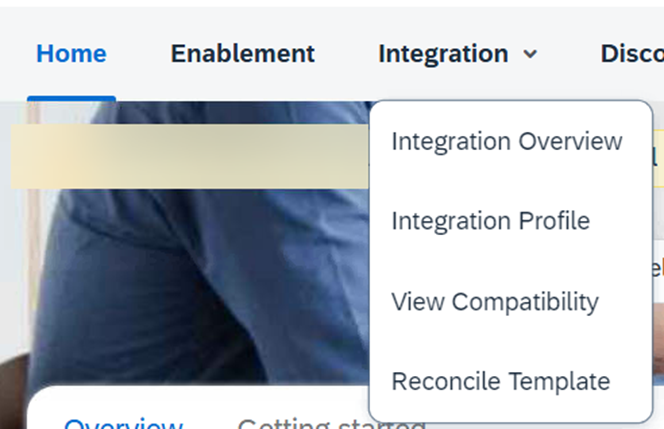
1. Accessing Guided Integration
▼Navigate to the Integration menu within your SAP Business Network account. Select Integration Overview.
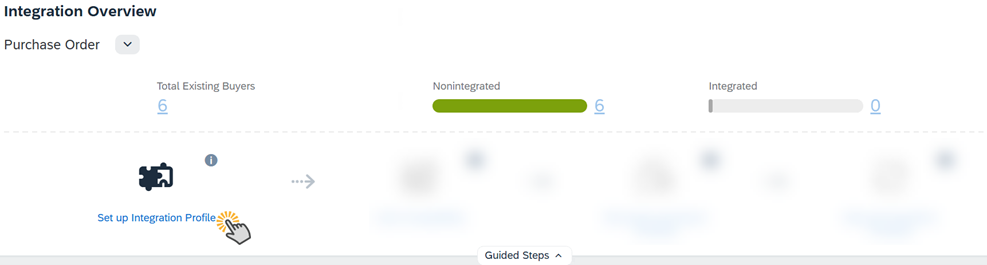
Completing your Integration Profile:
You will be presented with your GITP portal. Before you can begin using it to its fullest potential you will first need to setup your integration profile.
2. Integration Capabilities
▼Integration Capabilities:
Here you will first be required to outline some Integration capabilities before proceeding with the transactional document questionnaire.
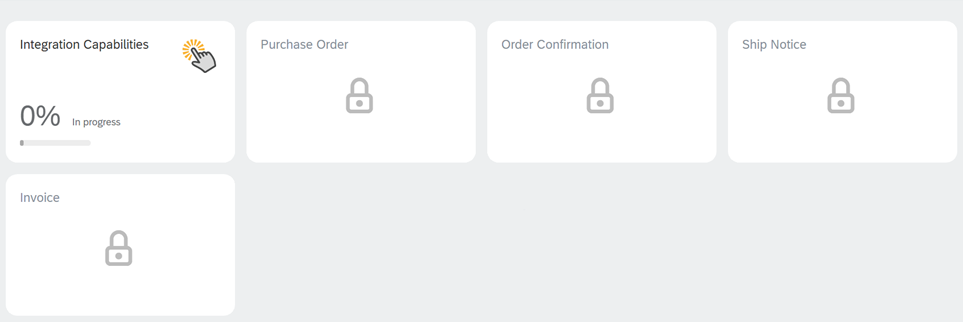
There are two sections to be completed here:
- General Information
- Which System will you use to Integrate with SAP Business Network?
This question aims to determine where transactions are going to be delivered to and posted from.a. If system is not within the list, "Other" can be populated and name can be entered underneath as a free text.
- Which middleware system will you use to integrate with SAP Business Network?
Same understanding as above, but for instances where a middleware system is used and not an in-house solution.a. If system is not within the list, "Other" can be populated and name can be entered underneath.
- Enter the name(s) of any third-party support used for the integration.
a. Outlines if the above systems are governed by a third-party team.
- Do you plan to support legacy and open purchase orders with the necessary follow-up documents (for example, order confirmation, ship notice, invoice and so on) through SAP Business Network?
a. Indicates if you have a handling process for legacy Purchase Orders that were not processed through the integrated channel at the time of production transition. (Typically, these are handled manually.)b. This will need to be confirmed with your buyer during the Integration project.
- Which System will you use to Integrate with SAP Business Network?
- Share options
- Do you want to share your questionnaire answers for all document types with your child accounts?
a. If you have a multi-org business network setup, would you like to have all linked child ANID's aware of the questionnaire answers you perform here (Only Available in PROD)Note: This information is non-impacting to any of the following transactional questions and is purely informational.
- Do you want to share your questionnaire answers for all document types with your child accounts?
3. Transaction Questionnaire
▼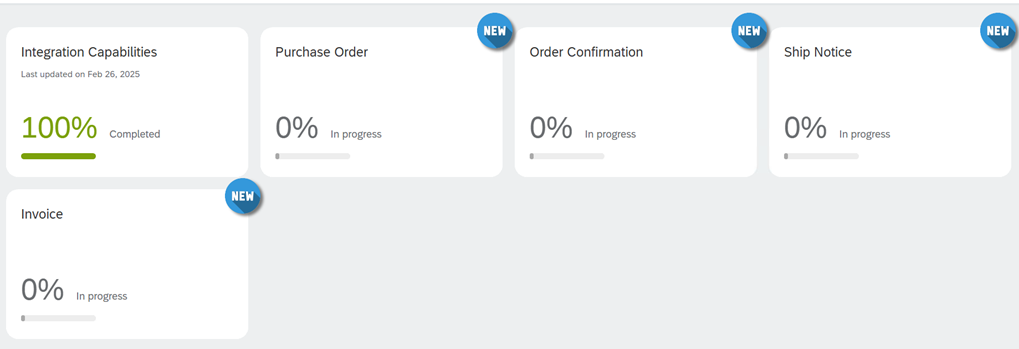
It is recommended to begin at "Purchase Orders" and work through each document type individually.
Purchase Orders
- Do you support cancellations for fully-shipped orders?
a. Do you support the business process of having a purchase order canceled when a full Advance Ship-Notice (ASN) has already been raised and received by your buyer?
- Do you support cancellations for partially-shipped orders?
a. Do you support the business process of having a purchase order canceled when a partial Advance Ship-Notice (ASN) has already been raised and received by your buyer?
- Do you support changes to partially-shipped orders?
a. Do you support the business process of receiving a change purchase order (PO) after a partial Advance Ship-Notice (ASN) has already been raised?
- Do you support service items in purchase orders? (Optional)
a. Do you support "Service PO's", these contain additional line-item attributes as opposed to a "Goods/Material PO"?
- Do you support receiving attachments to purchase orders electronically where the attachments go directly into your ERP? (Optional)
a. Does your system support transactions with attachments?
- Do you support multiple ship-to addresses sent at the line-item level in a single purchase order? (Optional)
a. Do you support receiving multiple ship-to addresses at the line-item level for a purchase order? Example of this below:<ItemDetail> … Line-item details </ItemDetail> <ShipTo> … Address 1 Details </ShipTo> <ShipTo> … Address 2 Details </ShipTo> </ItemOut>
- Do you support non-catalog purchase orders? (Optional)
a. These are purchase orders that are created from "non-contracted" items or manually without a catalog.
Order Confirmation
Here you will be asked a series of questions around how you confirm your purchase orders, with the inclusion of certain comment types and supportive extrinsic fields.
- Do you support sending order confirmations for material orders?
a. Can you send a cXML Confirmation Requests for Goods/Material Purchase Orders?
- Do you support sending order confirmations for service orders?
a. Can you send a cXML Confirmation Request for Service Purchase Orders?
- Do you support sending order confirmations for changes made to orders?
a. Can you send a cXML confirmation request for changed purchase orders?
- Do you update order confirmations when there are changes to a previously-confirmed information (for example, quantity, or delivery date)?
a. Do you send order confirmations as an "update" to an existing confirmation or a "new" confirmation each time there is a change – Example of this below:a. operation="new" sets initial status of items or entire orders.b. operation="update" revises item or order status set by previously sent order confirmations. Updates are not cumulative; each one must list all quantities of a line item (each document replaces the previous one).
- Do you support adding comments to order confirmations?
a. Can you send a <Comments> extrinsic on your cXML confirmations? (Optional)
- Do you provide comments in order confirmations when there are any proposed changes at the line-item level?
a. Can you send a <Comments> extrinsic on cXML confirmations with line-item changes?
- Do you provide a rejection reason when an order is rejected?
a. Can you support providing a rejection reason on the order confirmation?
- Do you provide rejection reasons at the line-item level for rejected items in order confirmations?
a. Can you support providing one of the following rejection reasons at the line levelb. Your buyer will also confirm if these are mandatory when providing a rejection status
| RejectionReason | RejectionReasonComments |
|---|---|
| other | Other |
| incorrectPrice | Incorrect Price |
| incorrectQuantity | Incorrect Quantity |
| incorrectDeliveryDate | Incorrect Delivery Date |
| incorrectUOM | Incorrect UOM |
| unableToSupplyItems | Unable to Supply Item(s) |
| unableToSupplyItem | Unable to Supply Item - For line level Rejections |
| incorrectDescription | Incorrect Description |
| incorrectStockPartNumber | Incorrect Stock/Part Number |
| duplicateOrder | Duplicate Order |
| notOurProductLine | Not our Product Line |
| incorrectSupplierCodeUsed | Incorrect Supplier Code Used |
Advance Ship Notice
Here you will answer a series of questions related to advance shipment notices and how you handle the information provided on it, such as delivery dates, ship-to addresses & transport information.
- Do you send ship notices to your customers?
a. Do you support the advance ship notice (ASN) transactional document?
- Do you provide asset serial numbers for each line item in a ship notice?
a. Is it a requirement for you to provide asset info or serial numbers on the ship notice line item. Example of this below:<ShipNoticeItem lineNumber="10" quantity="2.0"> <AssetInfo tagNumber="XXX" serialNumber="SNXXXX" location="Office 1"/> <AssetInfo tagNumber="XXX" serialNumber="SNXXX" location=" Office 2"/> <UnitOfMeasure>EA</UnitOfMeasure> </ShipNoticeItem>
- Do you provide actual estimated shipping and delivery dates?
a. Do you support any additional date formats other than the standard below date extrinsic examples:
- noticeDate="2001-10-14"
- shipmentDate="2001-10-14T08:30:19-08:00"
- deliveryDate="2001-10-18T09:00:00-08:00"
- Do you support multiple purchase orders in a single ship notice?
a. Can you ship multiple orders within a single ship notice document?
- Do you support multiple ship-to-addresses in a single ship notice?
a. Can you perform shipping to multiple address using only a single ship notice document?
- Do you provide transport information (for example, Incoterms) in ship notices?
a. Do you provide additional information within the <ShipTo> segment related to <TransportInformation> example below:<TransportInformation> <Route method="motor"/> <ShippingContractNumber>145</ShippingContractNumber> <ShippingInstructions> <Description xml:lang="en-US">As per the contract</Description> </ShippingInstructions> </TransportInformation>
- Does the ship notice number match the packing slip number?
a. Does the ship notice document ID need to match the packing slip number? Example below of ship notice request structure:<ShipNoticeRequest> <ShipNoticeHeader shipmentID="S89823-123"> … </ShipNoticeRequest>
Invoices
Here you will be answering specific invoice related questions around how you handle invoices, and the information provided on it. Credit memos, comments, dates & attachments.
There are three sections to be completed here:
- General Information: Generic questions around invoice handling
- Tax and shipping: Tax based questionnaire around providing TAX ID (ABN), addresses, changes and line level details.
- Miscellaneous: specific question about supporting custom extrinsic.
- Do you send invoices to your customers?
a. Do you currently send invoices via the SAP Business network (regardless of method)?
- Do you support sending credit memos at the header level?
a. Can you send a header level Credit Memo (CM) where all items are credited at a header level
- Do you support sending credit memos at the line-item level?
a. Can you send a line level Credit Memo (CM) where individual line items are credited.
- Do you provide reasons and/or comments when you issue credit memos?
a. Do you include a <comments> extrinsic for Credit Memo reasons? Example below:<Comments xml:lang="en-US"> Buyer ordered 5 "Product" We invoiced the buyer for 8 by mistake. </Comments>
- Do you send invoices for orders that are not transmitted from SAP Business Network (that is, non-PO invoices)?
a. Do you currently support the ability to send invoices for any orders that were not received within your SAP Business Network account?
- Do you support service invoicing?
a. Do you currently receive service purchase orders that require an invoice?
- Do you provide start and end dates for the service period on service invoices at header level?
a. Example below of start & end date extrinsic: This can be provided at either the header or line level.startDate="2012-11-19T10:15:00-08:00" endDate="2013-11-30T10:15:00-08:00"
- Do you provide start and end dates for the service period on service invoices at line level?
a. Example below of start & end date extrinsic: This can be provided at either the header or line level.startDate="2012-11-19T10:15:00-08:00" endDate="2013-11-30T10:15:00-08:00"
- Do you propose changes to the purchase order payment terms on the invoice?
a. Would you ever change the original paymentTerm specified on the Purchase Order? Example below:Purchase Order Payment Term:<PaymentTerm payInNumberOfDays = "30">…</PaymentTerm>Invoice Payment Term:<PaymentTerm payInNumberOfDays="20"> <Discount>10</Discount> </PaymentTerm>
- Do you send invoices without payment terms?
a. Is the <PaymentTerm> extrinsic excluded from the cXML of your invoices?b. Buyer will confirm if this is required.
- Do you send invoices with invoice dates earlier than the current date?
a. Do you perform invoice backdating?b. Common tolerance for invoice backdating is 3 days – this is determined by your buyer.
- Do you transmit attachments with invoices?
a. Can you support sending attachments on cXML invoices? This would be in the form of a MIME attachment.
- Do you provide your supplier tax ID (ABN) on invoices?
- Do you match the purchase order bill-to address on the invoice?
a. When providing an invoice, do you retain the Bill-To information from the purchase order to use on the invoice?
- Do you comply to strict address validation on invoices?
a. Is it a business requirement to comply with any address data you may have internally managed to be present on the invoice, regardless of the details present within the purchase order?
- Do you propose unit price changes on the invoice?
a. Would there be any case where you would need to have an alternate unit price on the invoice, different to the purchase order or what may have been previously confirmed on an order confirmation?
- Do you provide taxes at the line-item level in invoices?
a. Do you handle tax at the individual line-item level of the invoice?
- Do you support listing taxes and other charges (shipping, special handling, etc.) as separate line items in invoices?
a. Any additional charges that are not tax based, are these handled as individual invoice line items?
- Do you support withholding tax in an invoice?
a. Can you send an invoice which has no mention/reference to tax?
- Do you support custom fields (referred to as cXML extrinsics) on invoices?
a. Does your system have the capacity to support custom cXML extrinsic fields? Example of this below:<Extrinsic name="CustomerExtrinsic1">Custom Text</Extrinsic>i. The extrinsic field and data will be different between your buyers.
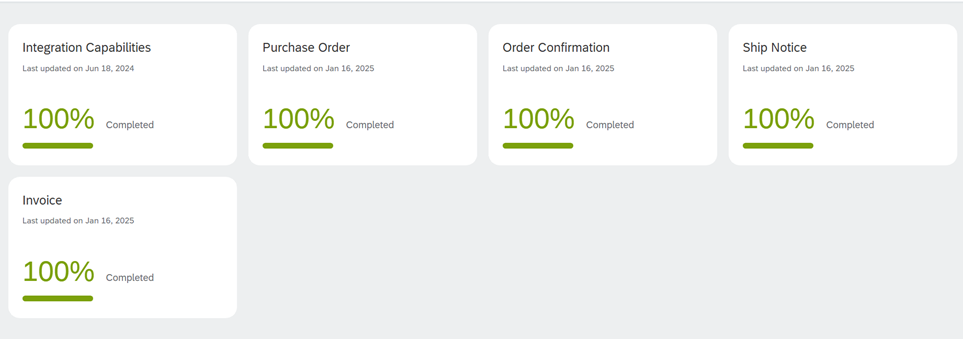
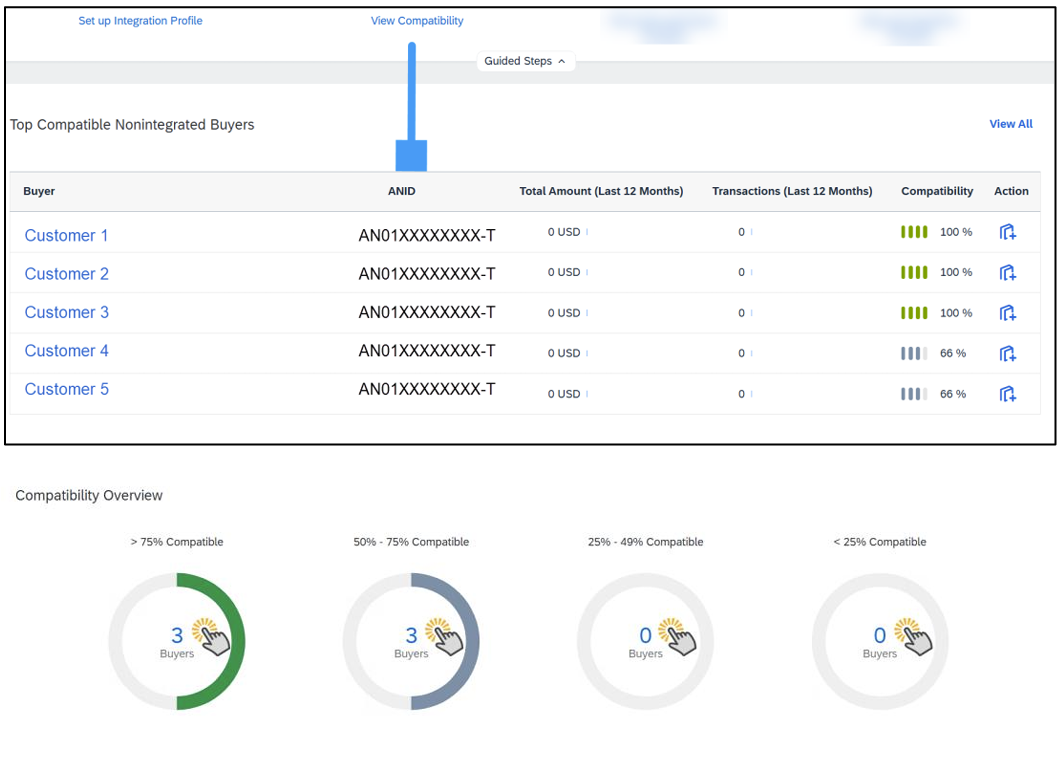
4. Compatibility Overview
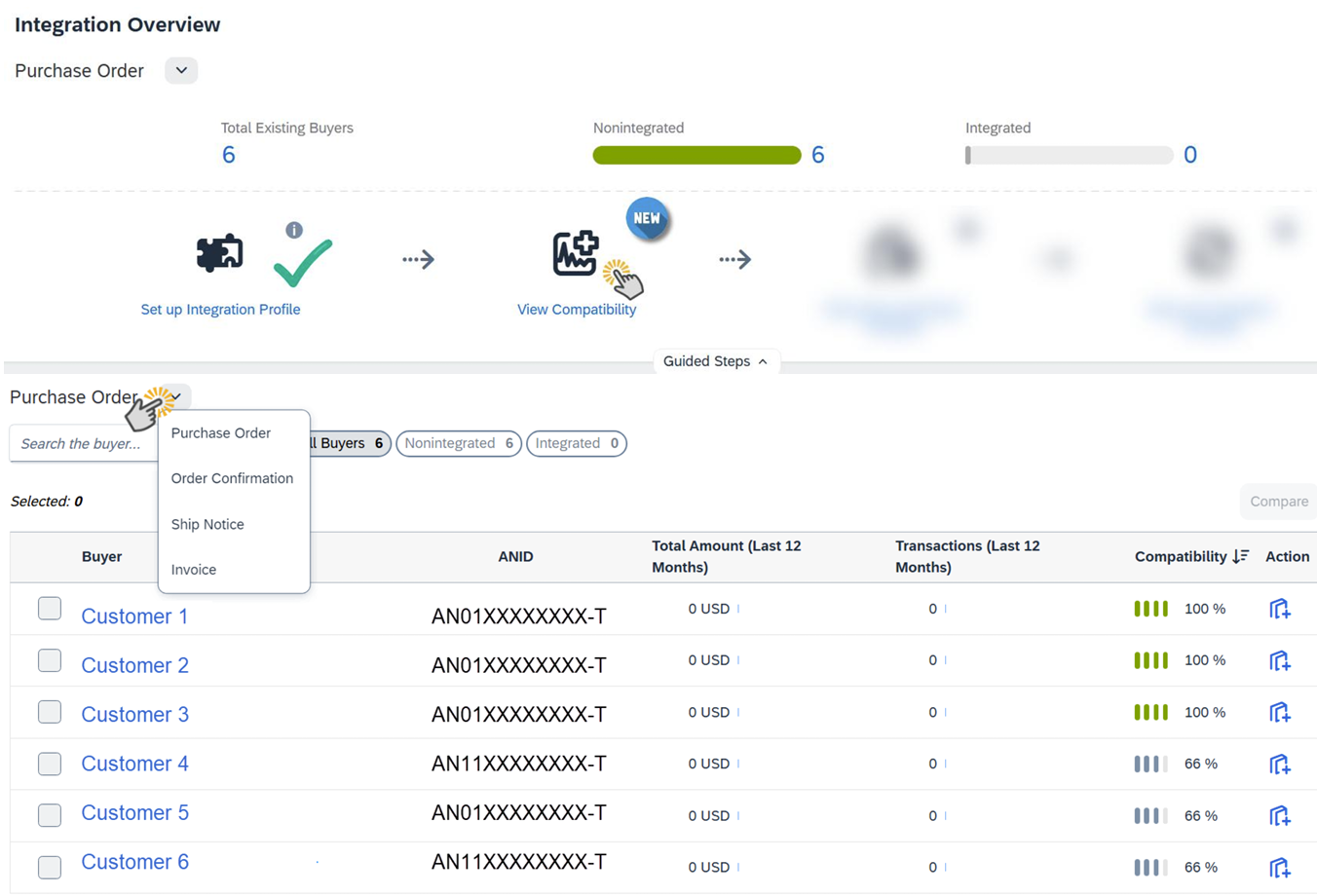
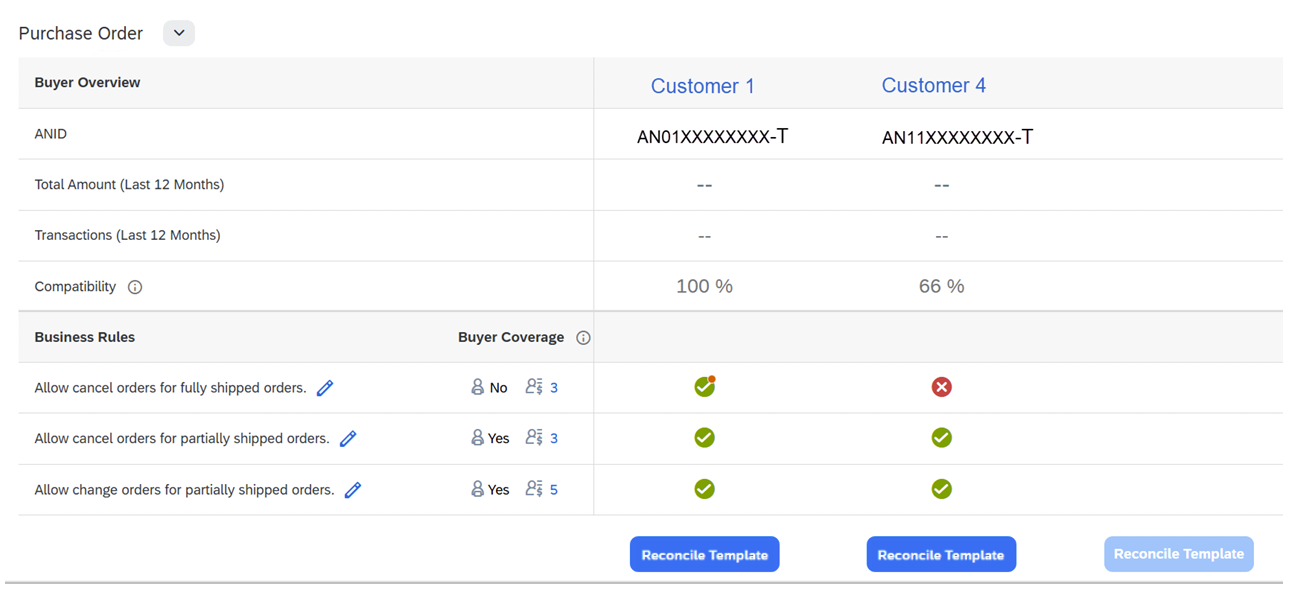
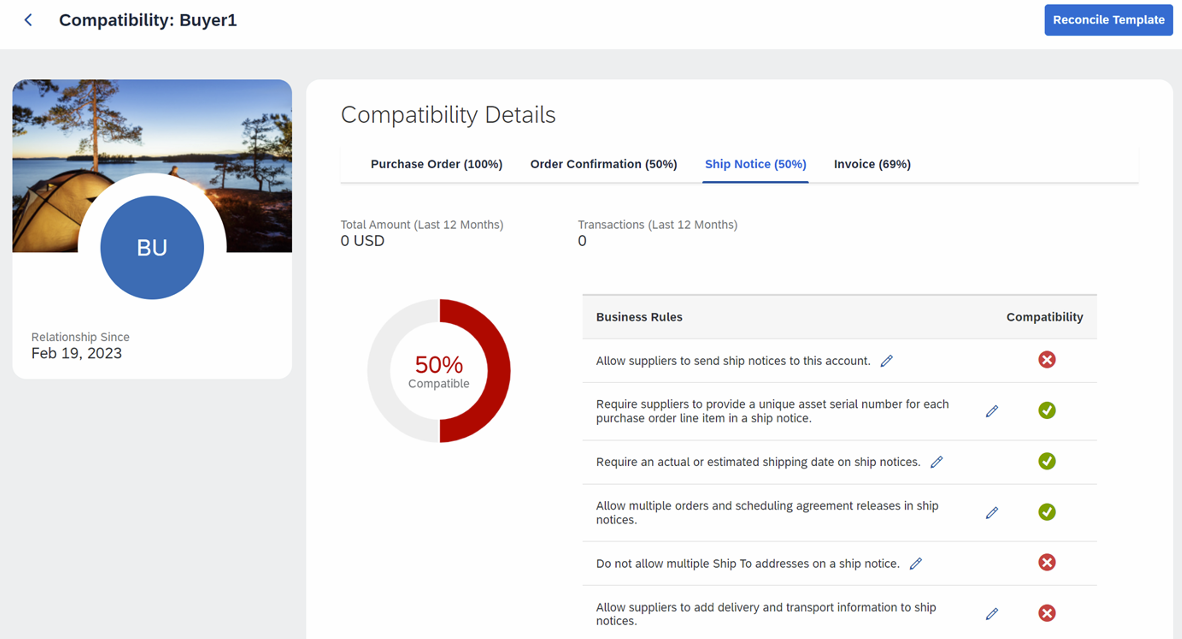
▼The Compatibility Overview gives you a clear picture of how well your integration profile aligns with the document requirements of your trading partners. Before accessing this feature, ensure you have the correct permission level assigned in SAP Business Network.
Access to Compatibility Overview requires one of the following roles in SAP Business Network:
- Integration Management – Read-Only Access
- Integration Management – Full Access
- Log in to your SAP Business Network account.
- Navigate to the Integration section.
- Open your integration profile and click on the Compatibility Overview tab.
- Review your compatibility scores across each document type and buyer relationship.
- Use the results to identify gaps and update your transaction questionnaire answers accordingly.
5. Compare and Reconcile Templates
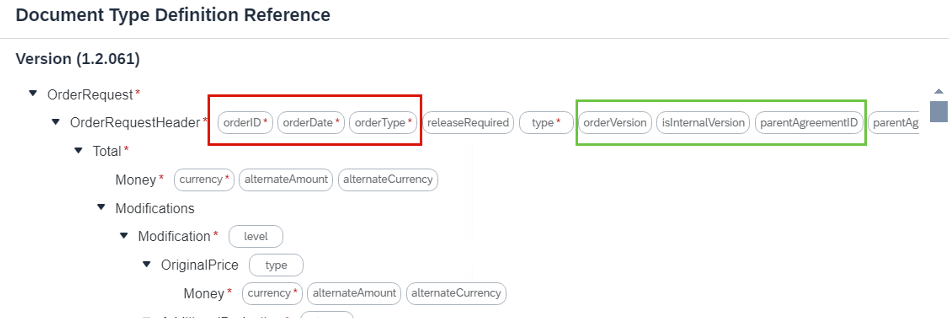
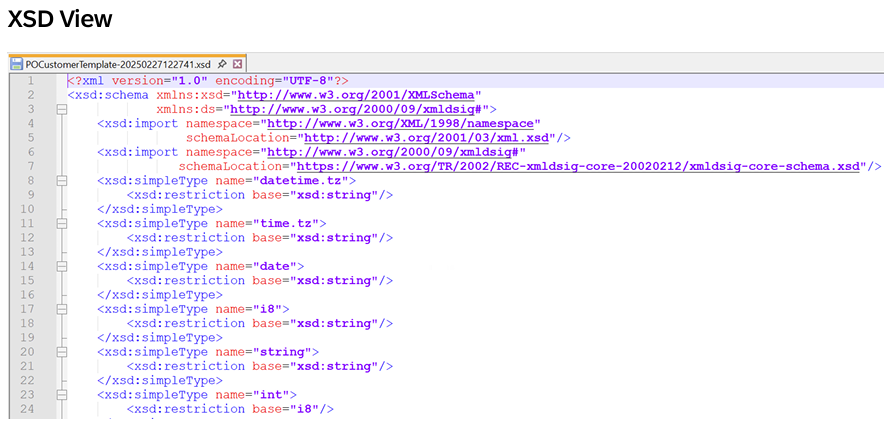
▼Once you have reviewed your compatibility, the next step is to compare and reconcile templates. This is where you perform technical structure building to assist with setting up internal system mappings on your ERP or Middleware, using XSD as the mapping format. The goal is to identify and resolve any cXML structural incompatibilities between your system and your buyers' requirements.
You will be presented with a series of template options. Each type determines how your XSD structure is built for internal mappings. Template types are applicable per document type.
A culmination of all buyer-specific cXML structures you have a trading relationship with, bundled into one "Super Template". Useful when you need to see every possible field that all your buyers would potentially provide on their transactional documents. SAP Business Network builds this automatically using transactions from the last 12 months. If no transactions exist yet for a document type, this template will not be available.
The "golden" standard that the SAP Business Network revolves around — no buyer-specific fields, only what is required by the network. Generated automatically using intelligence derived from a cross-section of existing buyer and supplier relationships across different industries. Your Integration Specialist will recommend starting here if you have no previous integration experience and are looking for something standard.
A template structure specific to the selected buyer and document type. Generated on the fly based on your actual transaction documents with that buyer. You can import your buyer's structure by exporting a transactional document from the PRODUCTION realm and uploading it here. Alternatively, transaction samples provided by your Integration Specialist can be uploaded and used for comparison. If no transaction documents exist with this buyer yet, you must upload a local version until transactions are available. System capability may vary.
If you have an XML template that is not specific to any buyer on the Business Network — such as something your system has previously produced — this option allows you to review existing iterations of cXML structure and compare them against a specific buyer or the Golden Template. Accepts cXML or CSV files up to 5 MB. System capability may vary.
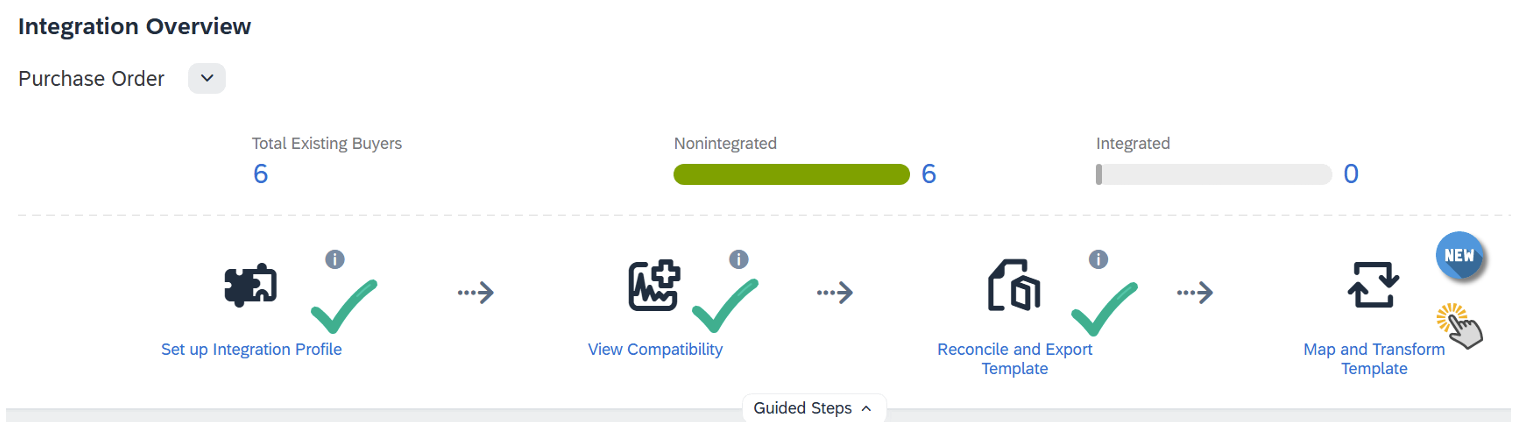
- From the Integration Overview page, click Reconcile and Download Template. The Reconcile Template page opens showing the current document type — use the dropdown to switch document types if needed. Your most recent saved template appears as My Latest Template in the My Workspace panel.
- Choose a Source template from the left panel: SAP Supplier Super Template, SAP Golden Template, Buyer Template, or DTD Template.
- Choose a My Workspace template from the right panel: Draft Template, My Latest Template, SAP Supplier Super Template, SAP Golden Template, or Upload Supplier Template (cXML file, max 5 MB).
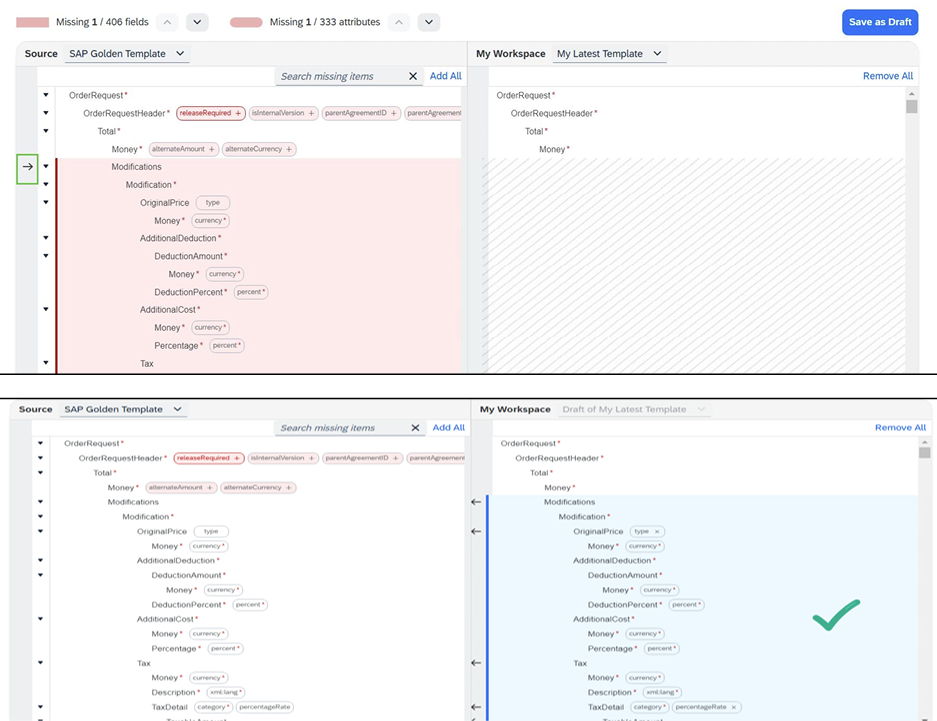
- Click Compare to display the differences. Only cXML elements that differ are expanded — identical elements remain collapsed for clarity.
- Optional: Use the search bar to locate specific fields and attributes. A minimum of three characters is required.
- Click Add All to transfer all missing items from the Source into your Workspace template. To remove individual items you don't need, click the back arrow next to them.
- Once reconciled, click Save as Draft to preserve your work. Draft templates can be reused across other integrations before being promoted to your SAP Supplier Super Template.
- Optional (requires Integration Management Full Access):
- Save Template — permanently saves the reconciled version (a confirmation prompt appears if overriding an existing version)
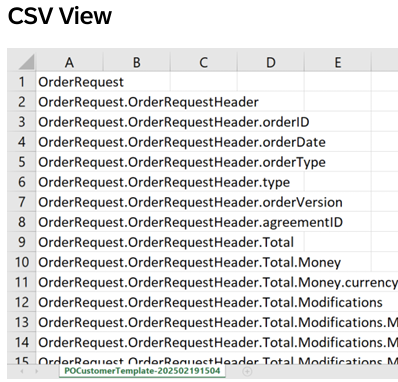
- Download / Export — exports the My Workspace template in your chosen format:
- Cancel — exits without saving
Ready for the next step? Continue to configure your integrated buyer connections.
This is where you will use the information from your GITP portal to set up the integrated connection for the respective buyers you would like to integrate with.
- Configure your integration between SAP Business Network and your ERP application to manage one or more buyer–supplier trading relationships.
- Specify the mapping configuration.
- Validate and self-test transaction documents.
- Monitor and track the integration lifecycle overall.
Creating a project requires configuration steps to be completed in order before you can deploy to production. Work through each wizard step carefully — connection details, mappings, cross references, and testing must all be completed and confirmed before deployment.
Supplier administrators can assign predefined permissions to users accessing the SAP Integration Suite, managed gateway for spend management and SAP Business Network. You need to create a role and associate the required permissions for the role, before you can create users.
- Sign in to your SAP Business Network account.
- In the right corner of the header bar, click the Account Settings icon and choose Settings → Users.
- On the Manage Roles page, click the Create Role icon at the top right of the role results table.
- Enter a distinctive name for the role.
- (Optional) Enter a description for the role. Descriptions can be useful later, if you want to review or revise the structure of your roles.
- Check the checkbox next to one or more of the following permissions for the new role. Each role must have at least one permission:
Allows you to create, modify, and maintain projects on the SAP Integration Suite, managed gateway for spend management and SAP Business Network.
Allows you to view and search for projects available on the SAP Integration Suite, managed gateway for spend management and SAP Business Network.
- Click Save. Ariba creates the role and returns you to the Users page.
- Click Create User to create a user for the SAP Integration Suite, managed gateway for spend management and SAP Business Network.
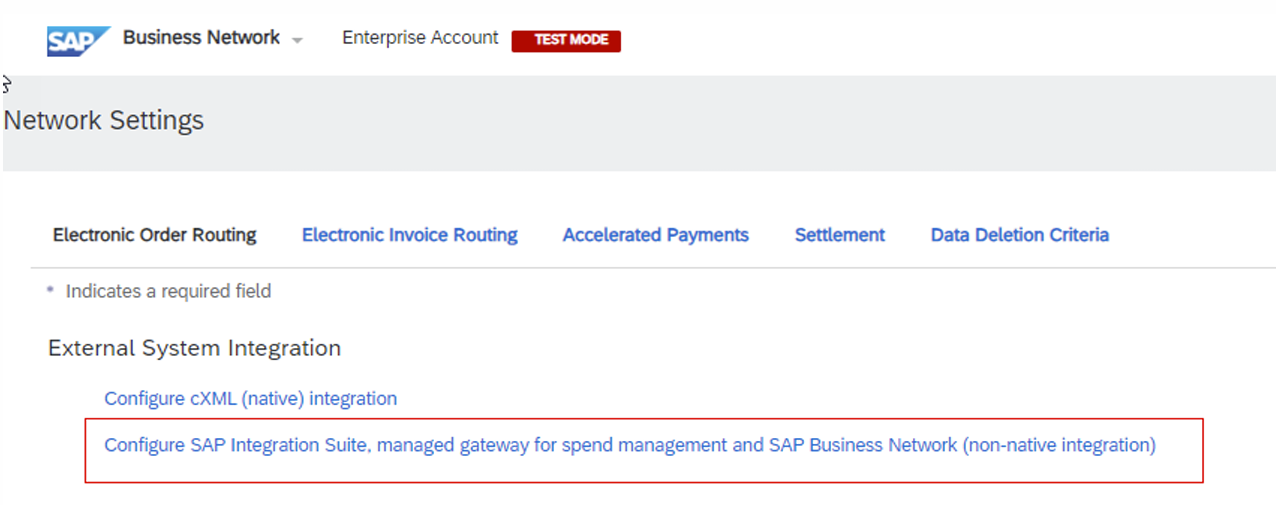
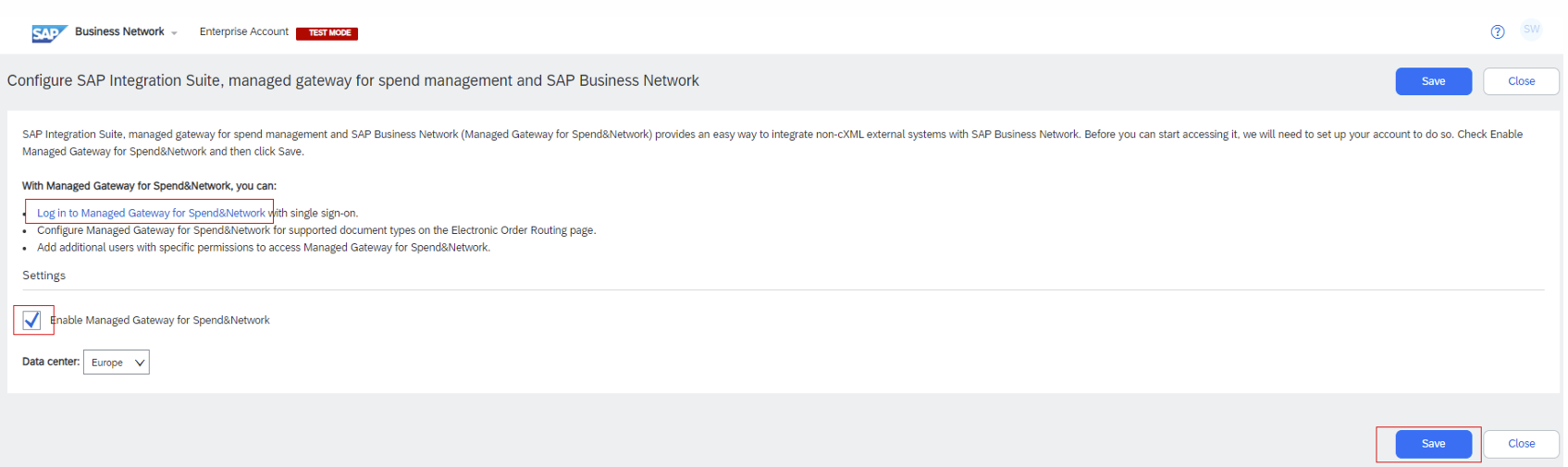
Log into your SAP Business Network Test account, and go to the Settings menu on the top right. Select Electronic Order Routing → Configure SAP Integration, Managed Gateway → check the box to Enable Managed Gateway for Spend&Network and click Save. You'll need to repeat the same process in your Production Account.
You can now log in to the Managed Gateway by clicking on the Log in to Managed Gateway for Spend&Network link shown here.
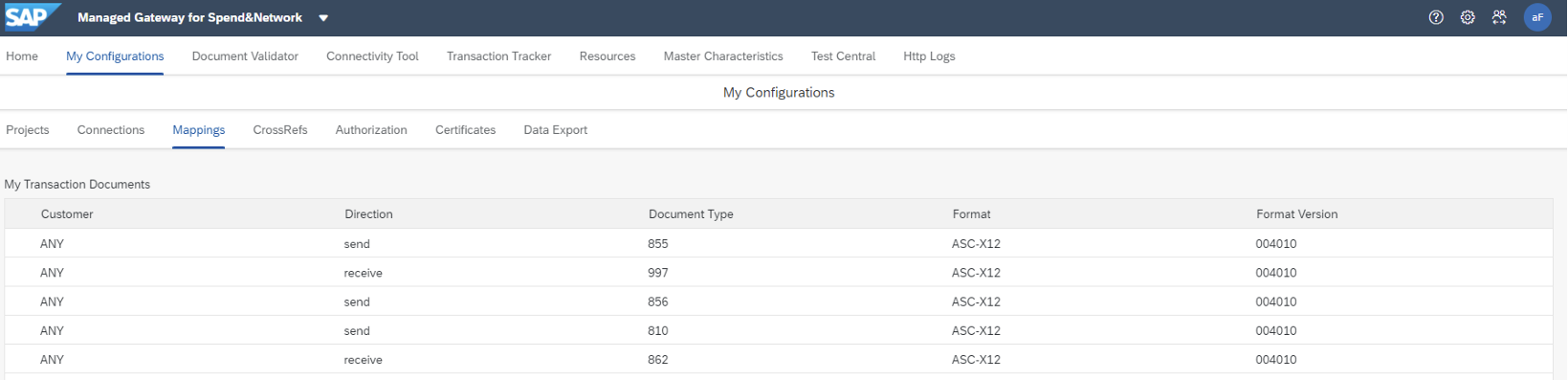
Select Create a new Integration Project on the Managed Gateway Home page to begin. Each step must be completed in order before proceeding to the next.
Basic Info
Connection
Mappings
Cross Reference
Test
Deployment
You can delete or edit any project that has not yet been deployed to production.
- Go to the Home page.
- Click Select in the Action column next to the project.
- Choose:
- Delete Project — and confirm the deletion.
- Edit Project — returns you to the project wizard.
- If a project uses a shared certificate, deleting the project does not delete the certificate/s — it remains available for all other projects using it.
- If you delete all projects using a certificate, the certificate will also be deleted.
- When editing a certificate within a project, you will be notified if it is a reused certificate. Changes to a reused certificate apply to all projects that use it.
Managed Gateway all set up? Validate your integration with Test Central.
A preferred testing tool within Managed Gateway for Spend & Network that enables suppliers to generate test purchase orders on behalf of the buyer, removing dependency on buyer-generated ERP test data.
- Enables suppliers to complete approximately 80% of testing independently, significantly reducing buyer involvement and shortening overall testing timelines.
- Allows suppliers to validate their documents against SAP technical standards and the buyer's specific business transaction rules, ensuring issues are identified and resolved early.
- Provides immediate feedback through automated validations and assertions, helping suppliers quickly correct errors without repeated back-and-forth with buyers or SAP resources.
- Configured on the backend as a one-time setup per buyer per PO type, allowing the same Test PO scenarios to be reused for every future supplier integration.
- Grows organically over time as additional PO types are introduced, minimizing future setup effort and increasing reuse across projects.
- Supports a more predictable and repeatable testing process, reducing delays caused by buyer system availability, approvals, or competing priorities.
- Improves go-live quality and confidence — most technical and business rule validation is completed before final end-to-end testing with the buyer's ERP.
- Reduces dependency on buyer teams, meaning faster iteration cycles and fewer escalations during integration.
- During the Testing phase of your integration lifecycle, after cXML document mapping is complete.
- Before scheduling end-to-end buyer testing — use Test Central to resolve all known issues first.
- For regression testing after any changes to your cXML mapping or middleware configuration.
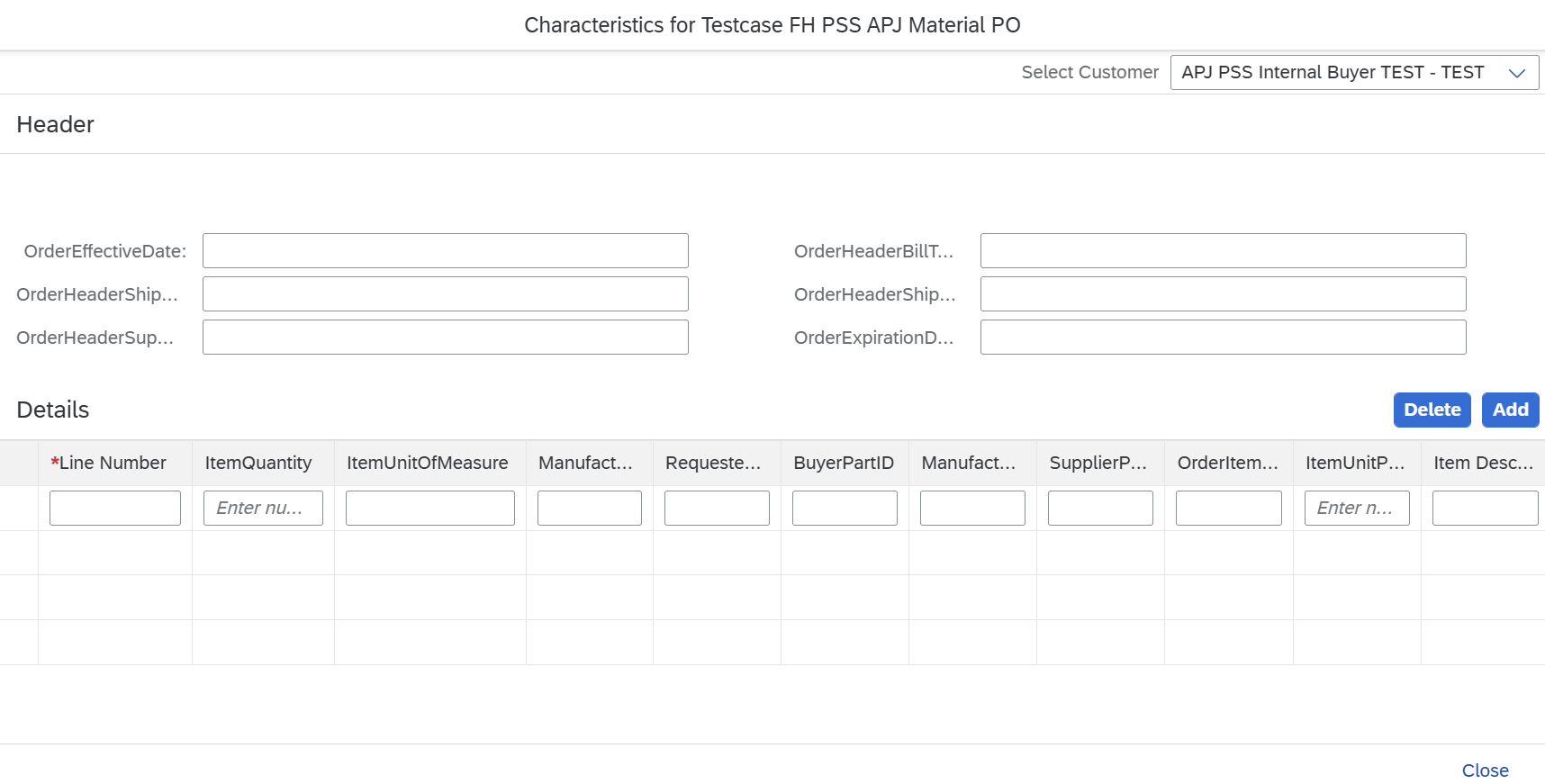
First, you will need to give your Test Script a Name and a Description. This is up to the supplier's discretion as they're the one creating the Test Scripts. Next, select the Customer you'd like to test with and the OrderRequest from the Document Type list and click Apply, then Add. You will get a pop-up with a list of possible scenarios to choose from.
Once you click into the specific test scenario, you can edit each line item and/or Add more lines to the Test Purchase Order. Select Close and your line items will be saved.
Click Save to send your Test Purchase Orders listed in the Test Scenarios.
The Test Central Dashboard will show you the list of Test Scripts you have submitted and their Status. The status can either be Completed, In Progress, or Failed. Click on Select to Edit, see Results, or Delete a script.

Follow this simple 5-step workflow for each Test Scenario:
The Test PO will flow to you as it is defined in the Default Order Routing or if the buyer has a Custom Order Routing.
- You can edit line items of the different Test POs generated in Test Central
Receive and process the PO into your system exactly as you would if the buyer was sending the test PO.
- Confirm your connection can receive buyer POs through Managed Gateway
- Check that all fields map correctly
Respond to the Test PO with the documents that were confirmed during the kickoff call, such as:
These documents help verify that your transactions are:
- Well-formed and valid (cXML/EDI)
- Aligned with the buyer's business rules in the SAP Business Network
Use the agreed-upon Test Plan to track which documents you have submitted. This makes it easy for SAP and the buyer to review results and identify anything that needs adjustment.
If a document doesn't pass validation the first time, don't worry. Test Central is designed for multiple test cycles, so you can correct issues and resend until everything passes.
| Name | Description | Document Order | Category | Action |
|---|
To ensure a meaningful and successful integration test, it's important for suppliers to update the buyer's test Purchase Order with their actual product data, including item names, SKUs, pricing, and quantities. Here's why:
- Realistic Simulation: Updating the PO reflects the actual products and formats used in production, allowing us to closely mimic live transaction behavior.
- Accurate Validation: It helps confirm that product data flows correctly between systems — ensuring everything from unit of measure to tax and pricing logic is configured as expected.
- Fewer Surprises: Testing with real data helps identify potential mapping or formatting issues before go-live, reducing the risk of failed transactions later.
- Streamlined Onboarding: If the test is successful, transitioning to production will be smoother.
For a thorough end-to-end validation, have the buyer send at least one Purchase Order directly from their Test system before moving to Production. This helps confirm real-world readiness and system compatibility.
| ID | Document | Scenario | Status | Action |
|---|
Your main portal for managing transactions, viewing POs, submitting invoices, and configuring integration settings.
Documentation, best practices, troubleshooting guides, and FAQs for suppliers.
Official cXML standards, DTDs, schemas, and the complete reference documentation.
Connect with other suppliers and SAP experts for knowledge sharing and support.
Implementation guides for SAP Integration Suite, managed gateway for spend management and SAP Business Network. Covers standard business-to-business formats for digital data interchange across all major EDI and B2B standards.
Access the official documentation for the Guided Integration tool, including step-by-step instructions for each phase of your setup.
Provide your feedback on the Guided Integration for Trading Partners (GITP) tool to help us improve the experience for all partners.
Test Central provides automated status updates. Your documents must be:
- Well-formed (technically correct)
- Valid against cXML/EDI standards
- Aligned with the buyer's SAP Business Network transaction rules
If anything fails, Test Central provides an error message so you can correct and resend.
No special mapping is needed for Test Central. The POs you test with come directly from the buyer's real Production samples, so they match what you'll receive in both Test and Production when the buyer sends a PO themselves.
You may make small fixes if validations fail, but the mapping you build in Test Central is the same mapping used for end-to-end testing and Production. Nothing is temporary — you are building your final live integration.
Your SAP Integration Resource will:
- Demo how Test Central works
- Guide you through setup
- Help troubleshoot errors
- Support you through all test cycles
- Confirm you're ready for end-to-end testing and go-live
You are not testing alone.
The buyer sends at least one PO from their ERP to verify your documents flow correctly and pass their ERP validations. After this confirmation, the process continues exactly as it always has:
- Move the connection to Production (if applicable)
- Update your Order Routing settings in your SAP Business Network Production account
- Make any necessary updates in your internal systems
- Proceed to go-live on the agreed-upon date